

Who can see a session?
Every session has one permanent, unguessable address,/s/ followed by a 16-character code. It’s the address in your browser bar while the session is open. Sharing decides who else that address works for.
Pick Anyone with the link to show work to someone who won’t sign in to Alpha. Pick Specific people when the session holds anything you wouldn’t post publicly: a forwarded link does nothing for someone who isn’t on the list.
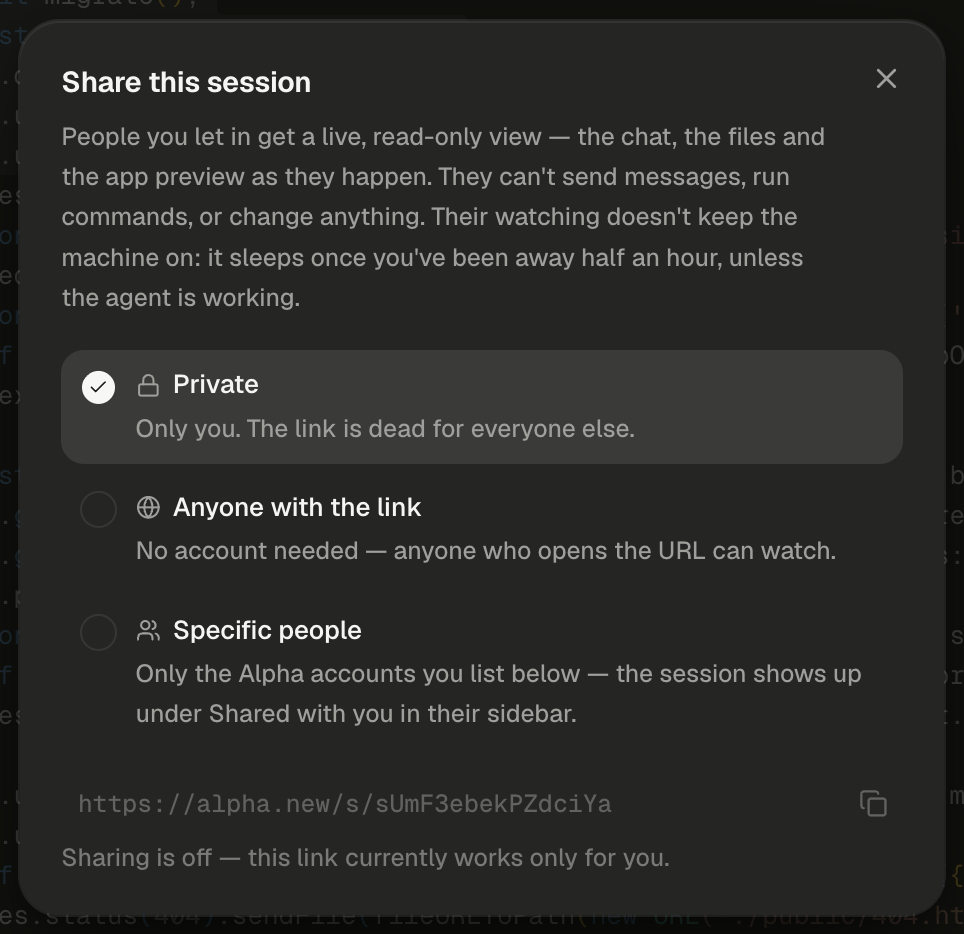
Every session starts Private: the link already exists, but it works only for you.
Share a session
Only the session’s owner can change its sharing. Every change takes effect the moment you click. There’s no save button.1
Open the Share dialog
Click Share (tooltip “Share this session (read-only)”) at the top right of the workspace, beside GitHub. With the workspace hidden, it sits in the session header instead. The dialog is titled Share this session. A small green dot on the button means “Sharing is on”.
2
Pick who can watch
Click Private, Anyone with the link or Specific people. The choice applies at once.
3
Add people by email
For Specific people, type an address into the field (“viewer@example.com — nobody is whitelisted yet”) and press Enter or click Add. Each address becomes a chip. Click its Remove (×) to take it off. You can list up to 20 addresses, and they must match the emails people sign in to Alpha with.
4
Copy the link
Click the copy button beside the address. Its tooltip changes from Copy link to Copied. Clicking the address itself selects it. With Private selected the link is dimmed, with the note “Sharing is off — this link currently works only for you.”
If Specific people is greyed out with “Needs accounts — this server runs in guest mode.”, your Alpha runs without accounts, so there are no emails to match. Ask whoever runs it, or share by link.
What can viewers do?
Someone you’ve shared with, signed in to Alpha, gets the same workbench you use, read-only. The header shows a view only badge, followed by ”· shared by” and your name when the chat column is wide enough. Its tooltip spells out the deal: they can watch, browse the files and open the preview, but not send messages or change anything.
A session with nothing in it yet shows “Nothing here yet — you’ll see this session live as its owner works.”
Watch without an Alpha account
On an Alpha that uses accounts, a visitor who opens an Anyone with the link session without signing in gets a lighter page: the transcript alone, streaming live. On an Alpha without accounts, every visitor gets the read-only workbench instead. The header carries the session title, “Alpha · shared session”, a status pill (“live”, “agent working”, “connecting…” or “stream ended”) and a view only pill. To see the files and the app as well, the visitor clicks Sign in for files & preview. After signing in they land back on the same link, in the read-only workbench. With Specific people, a visitor who isn’t signed in is asked to sign in first and returns to the link afterwards.Find sessions shared with you
Sessions shared with your email appear in your sidebar under Shared with you, below your own. Each row shows the owner’s name under the title and has no ⋯ menu. A session you opened from a link-only share sits there too while it’s open. Search finds shared sessions by title. Hover a row for its card: “Shared by Priya · view only” and the machine’s state. A machine that’s asleep reads “Machine asleep · wakes when its owner is back”. Watching doesn’t wake it while its owner is away from Alpha. The transcript is always there, but the files say “this session’s machine is asleep while its owner is away” until the owner returns or work starts.Stop sharing
Pick Private in the Share dialog. Every viewer’s live view ends at once, and the session leaves their Shared with you list. Removing one email does the same for that person only. Someone watching in the workbench is taken off the session and sees “This session is no longer shared with you.” A visitor on the transcript-only page sees “The live stream ended — sharing may have been turned off. What’s above is what was shared.” The transcript they already saw stays on that page until they leave. A few more rules:When a link doesn’t open
Each of these is a full-page card with an Open your own Alpha button that leads to the viewer’s own home screen.Next steps
Setups: ready-made machines
Want someone to build on your work? Save a setup and share it with their email.
Publish your app
Give people an address that doesn’t depend on your session: a published app runs on its own.
Sleep, wake and reset
Why a shared session’s files and preview wait for you, and what wakes its machine.
Admin dashboard
Admins watch any session and can turn its sharing off from the dashboard.