

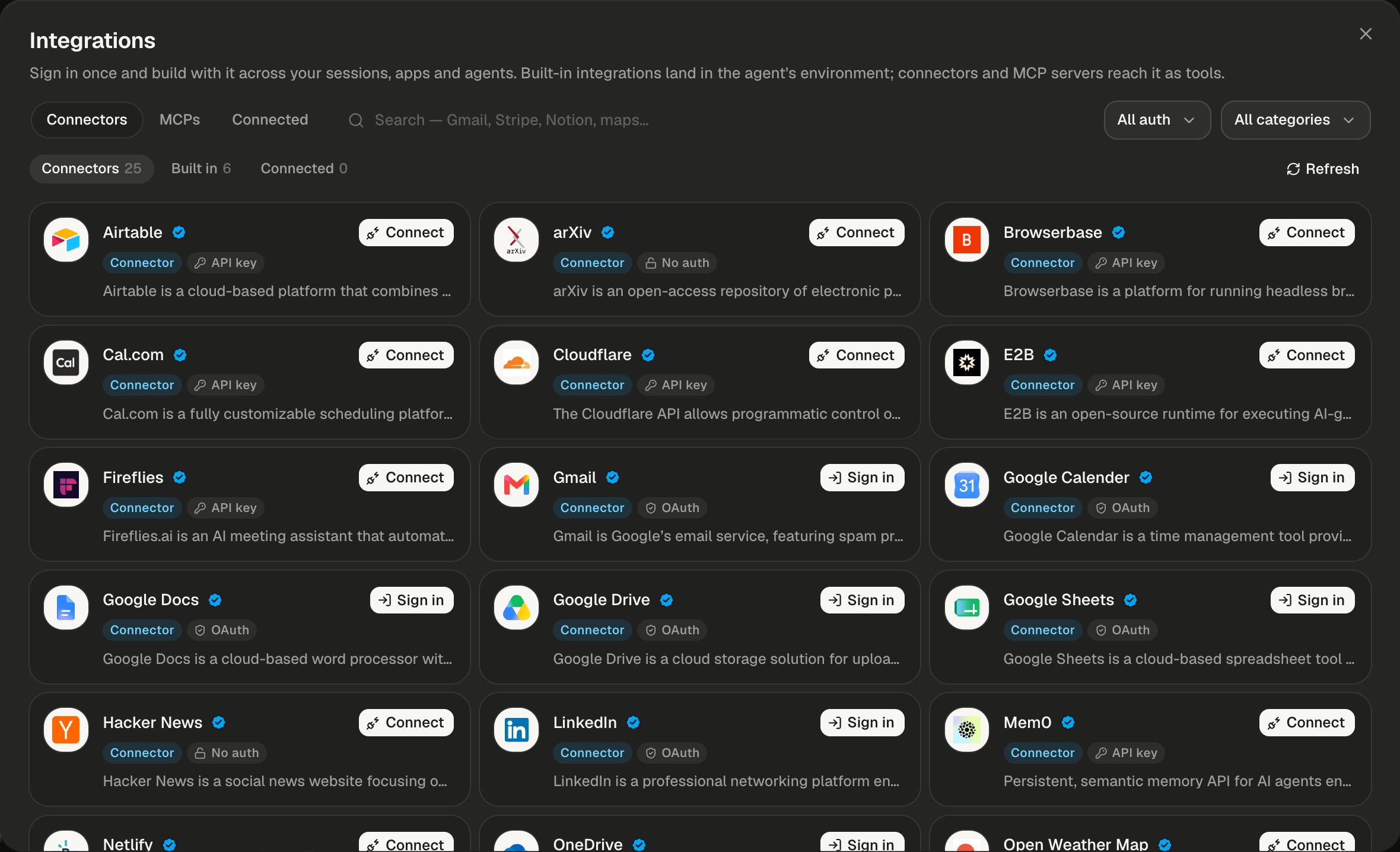
The catalog opens on Connectors, where each app offers Sign in or Connect.
What counts as an integration?
Each card names its kind with a coloured badge. Built-in services land in the agent’s environment; connectors and MCP servers reach it as tools.
Connector and remote MCP sign-ins never enter a session. Sessions and apps hold only a per-session key, never your password or the app’s own token.
If you don’t see an app or MCP server you expected, it isn’t turned on for your Alpha. An admin chooses which apps and hosted MCP servers the catalog offers.
Browse the catalog
The catalog opens as a large dialog over whatever you are doing. It has no address of its own, so there is no Integrations page to bookmark. There are three ways in:
The dialog has three tabs, and each sub-tab shows a count.
Cards are sorted A to Z. Click one to open its detail: what it gives the agent and how to connect it.
Read a card
Every card tells you what a thing is, how it signs in and whether it is on.- Logo. A server with no mark of its own shows the MCP glyph.
- Verified. Alpha curated it. Servers you add yourself don’t get the check.
- Type badge. Connector, Built in, Remote MCP or Local MCP.
- Auth badge. OAuth (sign in with the app’s own account), API key (paste a key or credentials) or No auth (one click). Built-ins have none.
- Action or status. See the table below.
When a remote server’s sign-in has expired and can’t be refreshed, its detail reads “Sign in again”. Built-in cards show nothing in the corner, because they are always there.
Use the built-in services
Connectors → Built in lists the six services every session’s machine already has. The agent switches each one on when your project needs it.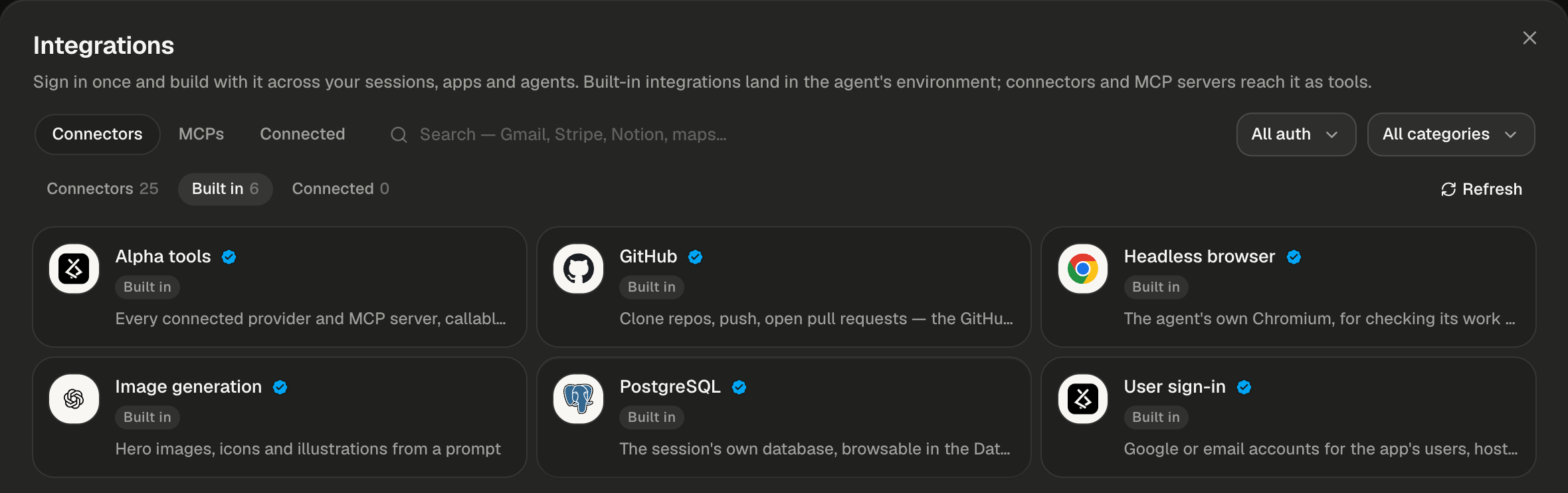
Built in: six services, with no sign-in and no button.
Click a built-in to see what the agent works from: a Built into Alpha box, a What the agent gets list of its variables for those that set any, and a collapsed What the agent will follow section. Expand it to read, word for word, the recipe the agent follows for that service.
Where does a connection reach?
A connection belongs to your account, not to one session. Sign in to Gmail once and every session you own can use it.
Connections belong to your account alone. Other people’s sessions never get them, even when you share a session with them.
When do changes take effect?
Connecting, disconnecting or revoking something updates every running session of yours. If the agent is mid-turn, the change waits for that turn to end, so the new tools arrive with your next message.Check what’s on
The Connected tab lists every connector you signed in to and every MCP server that is on. Built-in services never appear there. Its count matches the badge on the sidebar’s Integrations row. With nothing on, the tab reads “Nothing connected yet — sign in to a connector or install an MCP server.”What if a service isn’t listed?
It still works. Search for it, and when nothing matches the catalog says so: “A service that isn’t here still works as a plain secret — the agent will name the variable.” Ask the agent to use the service. When it needs a key it posts a card in the transcript, such as “The agent needsHARBOR_WEATHER_API_KEY”, with an Add HARBOR_WEATHER_API_KEY button that saves the key as a secret. The agent then reads it as an environment variable. If the service offers an MCP server, you can also add it yourself under MCPs → Add server, as described in MCP servers.
Next steps
Connect an app
Sign in with the popup, connect with a key, test a connection and answer the agent’s Connect card.
MCP servers
Install Context7, sign in to Stripe or Notion, or add a server of your own by URL or command.
Use integrations in your app
Find the session’s key, copy its two
.env lines and rotate it if it leaks.Secrets
For a service with no connector: store its key once and every session gets it.