For engineers: bring a GitHub repo into a session, plan a change, review it and open a pull request.
This guide takes one of your GitHub repositories from the home screen to an open pull request: the agent plans the change with you, builds it on a branch, runs your tests and reviews its own diff before you push. It ends by saving the machine as a setup, so the next session on that repository starts with everything installed. To start from an idea rather than a codebase, follow the Quickstart instead.About 20 minutesBy the end of this guide you will have a pull request on harbor-api, Harbor Sailing School’s booking API, that adds a waitlist to full classes. You will also have a setup that boots new harbor-api sessions with the repository cloned and its dependencies installed.
A GitHub repository you can push to. This guide uses harbor-sailing/harbor-api; use any repository of your own.
A test command that runs from the terminal, such as npm test or pytest. The agent uses it to check its work.
If the GitHub card says “GitHub isn’t set up on this server yet — ask whoever runs it.”, GitHub isn’t turned on for your Alpha. Public repositories can still be added by name, but nothing can be pushed.
On the home screen, click the repos chip in the composer, then Connect GitHub. GitHub opens in a new browser tab. Pick your account or an organization, choose which repositories Alpha may work in, and authorize. When you come back, Alpha’s tab has already picked up the connection. You do this once per account: every session you own gets an authenticated git and gh, and the token is redacted if it ever reaches the transcript. To add an organization later, use add account in the same popover. Connect GitHub and add repositories covers organizations and access requests.
2
Stage the repository and its branch
Open the repos chip again and type harbor in Search your repos or owner/repo. Click harbor-sailing/harbor-api. It is added to the staged list with a branch field that reads default branch. Leave it empty to start from the repository’s default branch, main here, or type an existing branch such as develop. The branch must already exist on GitHub. New work goes on a new branch, which the agent creates in the next step. You can stage up to 5 per session, and a setup’s repositories count toward it; see Limits. The repository is cloned into /workspace/harbor-api before the agent’s first turn.
3
Ask for a plan
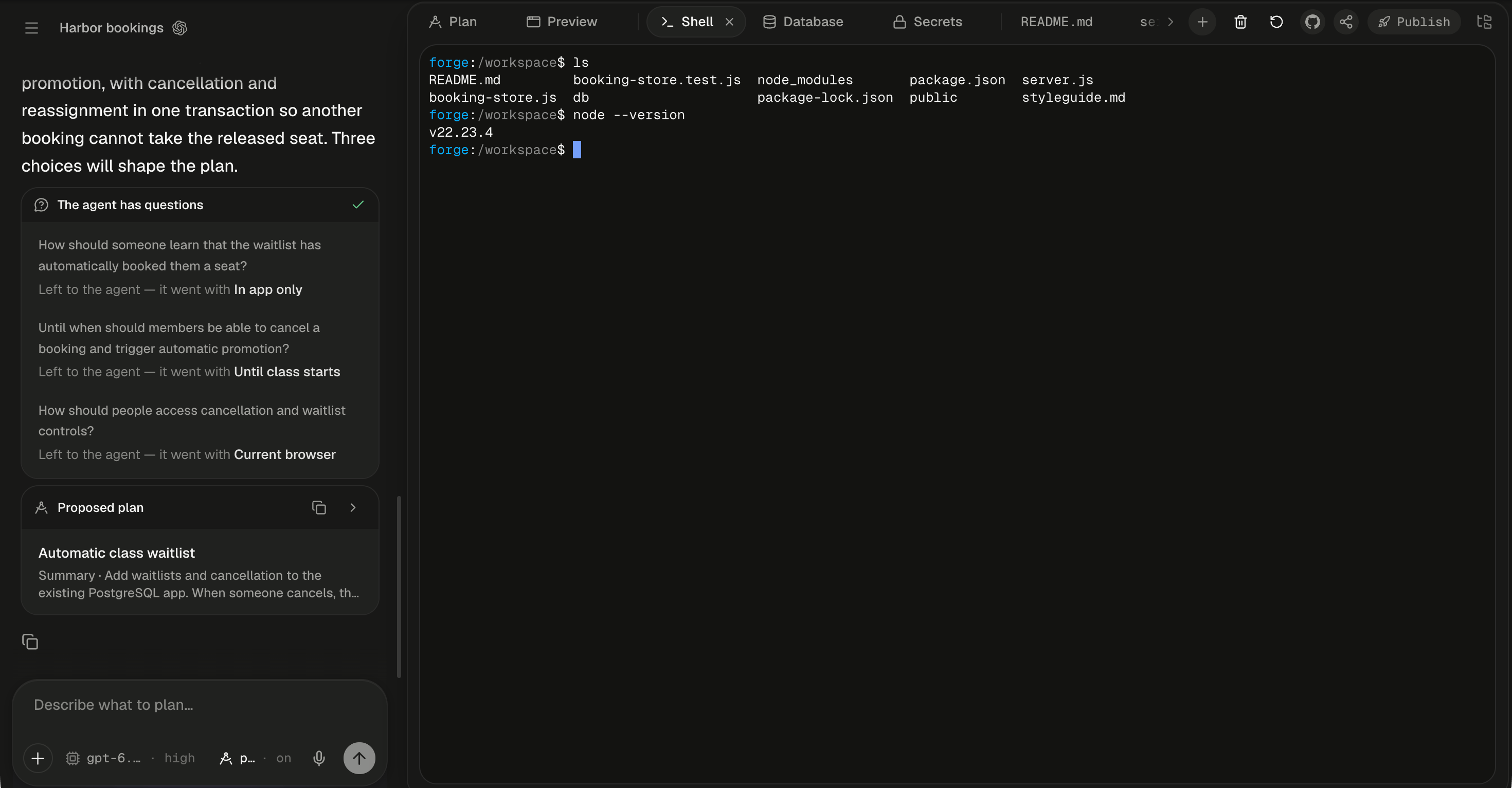
Type the task after /plan and send it. On the home screen, /plan <task> creates the session in plan mode and sends the task as its first message. In plan mode the agent reads the code and changes no files. When it needs a decision, it asks in a question card titled “The agent has questions”. Pick an option or type into Something else…, then press Send answers. To leave the choice to the agent, press Skip — let the agent decide instead. You can also switch plan mode on and off with ⇧Tab in the composer.Alpha will:
Create the session and clone harbor-api into its machine.
Read the routes, models and tests without changing a file.
Ask you about anything the code doesn’t settle, such as whether a waitlist has a maximum length.
Write a proposed plan into the Plan tab, which opens by itself.
4
Implement the plan and run the tests
Press Implement this plan in the Plan tab. It switches plan mode off and sends “Implement the plan.” for you. As the task asked, the agent creates feature/waitlist, writes the code, runs your test suite and commits on the branch. The turn runs on Alpha’s servers, so you can close the tab and come back to a complete transcript.To check the work yourself, open the workspace’s + menu and choose Shell. The Shell is a terminal in the same machine, as the same account the agent uses, with sudo. Run cd harbor-api && npm test. Files you change there are files the agent sees on its next turn.
The Shell opens in /workspace, the same folder the agent works in.
5
Review the branch against main
When the turn ends, type /review and press Enter. In Start a review, choose Review against a base branch. The branch field is already filled with main, the repository’s default branch. Press Start review. In a Codex session, Codex runs its review mode on the workspace and posts a “Review started” card, then a “Review findings” card. In a Claude Code session, Claude Code gets a review prompt and answers in the transcript instead. To act on what it found, reply with the findings you want fixed. While a turn is running, the review is refused with ”‘/review’ is disabled while a task is in progress.”; see Slash commands.
6
Push and open the pull request
Click GitHub in the workspace header, beside Share. The branch row shows feature/waitlist marked unpublished. If the review fixes left uncommitted changes, type a message in the commit message box under Changes and press Commit, or Commit & push (⌘Enter, Ctrl on Windows and Linux) to push at once. Then press Push & create PR in the footer. The New pull request view shows the branch, a base selector set to main, a Title taken from the last commit and an optional description. Tick Create as draft if you want, then press Push & create pull request. See Branches, commits and pull requests for why a button can be disabled.
The footer now reads View PR #12, and the pull request is pinned at the top of Pull requests. Commits carry your GitHub account as their author.
7
Save a setup for next time
Every new session on harbor-api would clone and install from scratch. A setup saves that work once: the repository cloned, a setup script run and the machine saved, so the next session boots in about a second. Ask the agent to save one from what worked in this session.Alpha will:
Write the setup from the commands that worked here: the install, the migrations, and a boot script that pulls the latest main.
Start the build on a fresh machine, which usually takes a few minutes. Your session’s machine is not touched.
Tell you when it is ready, or that it is still building and will appear in the home screen’s machine chip.
Next time, click the machine chip on the home screen, which reads blank machine, and pick harbor-api dev. You can keep 5 per account (Limits). To see a build’s progress, open Account menu → Setups.
A setup build runs with your GitHub token and secrets in its environment. Alpha removes them before saving the machine, but files are kept. A token written into .npmrc or .env during the build ends up in every machine started from the setup, including those of anyone you share it with.
You connected GitHub, planned a change before any code moved, built and reviewed it on a branch, opened a pull request, and saved the machine as a setup for your next session.