

Use plan mode when the work is large, vague or hard to undo: a new feature across several files, a schema change, an existing repo you haven’t read yet. You see the agent’s understanding before a single file changes.
Skip it when the change is small and you already know what you want: a copy fix, a colour, a bug with an obvious cause. Planning adds a round trip that a one-line change doesn’t need.
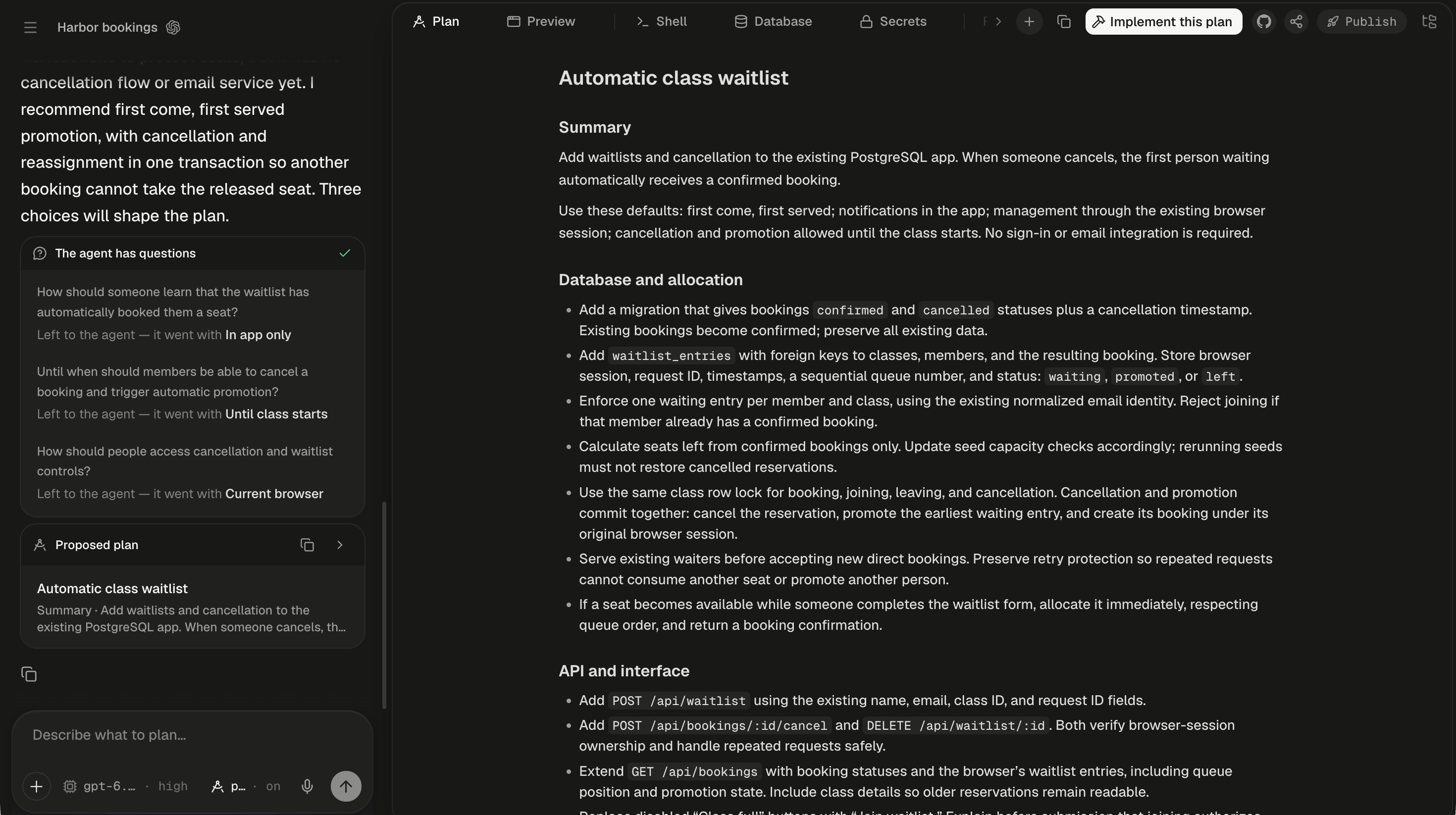
You read the plan in the Plan tab and build it from there; the chat keeps a short card.
What happens in plan mode?
The agent explores without editing, asks what it can’t work out on its own, then writes the plan. You either reply to refine it or build it. Building switches plan mode off, so the same session goes on to make the changes. Codex and Claude Code sessions plan the same way on screen. A Claude Code turn ends as soon as the plan is in front of you.Switch plan mode on
Plan mode belongs to the session and stays on until you switch it off. A change applies from your next message; a running turn finishes in its own mode.
All four work on the home screen too, for the session your prompt starts. With plan mode on, the composer’s placeholder changes: “Describe what to plan — the agent explores and asks, then proposes a plan…” in a session, and “Describe what to plan — the agent explores and asks before proposing a plan…” on the home screen.
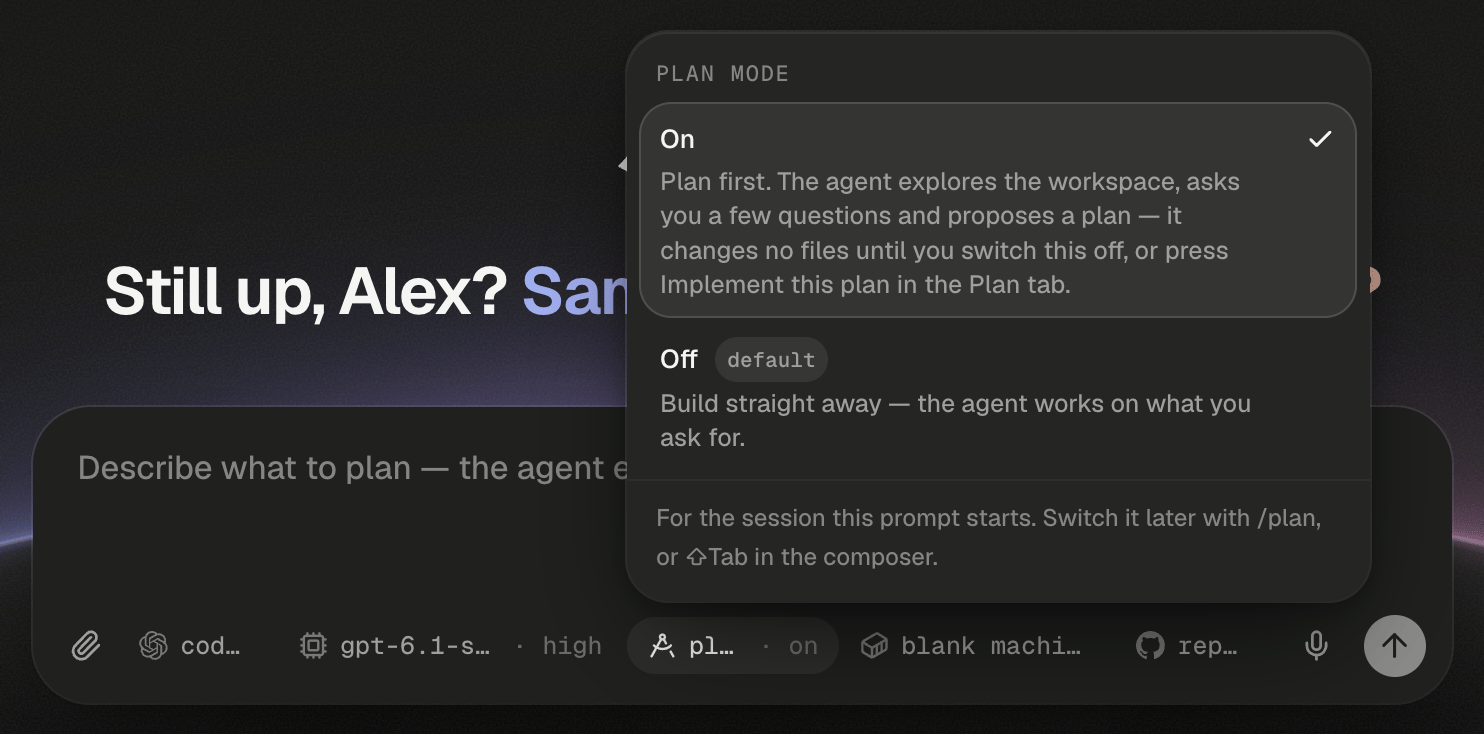
The plan chip's picker on the home screen, with On picked and Off as the default.
- Switch plan mode on for the session and send the task.
- Read the booking code and the database schema without changing a file.
- Ask you questions in a card, for example how a freed spot should be offered.
- Write the plan into the Plan tab and stop, waiting for you.
Answer the agent’s questions
The agent asks with a card, never a numbered list, in every mode and in both agents. The card is titled “The agent has a question” or “The agent has questions”, and the turn pauses on it with “Waiting for your answer”. Pick an option for each question; one that takes several answers says “Pick any that apply.” Where the agent allows it, click Something else… and type your own answer. Then click Send answer, or Send answers for several questions, which counts your answers once you’ve picked some, as in Send answers (1/2); pressing Enter in a typed answer sends the card too. Sending with nothing picked shows “Pick an option or type an answer first — or skip.” Skip — let the agent decide sends no answers, and the agent goes with its own recommendations. Once the agent has its answer, the card folds to a record of what happened: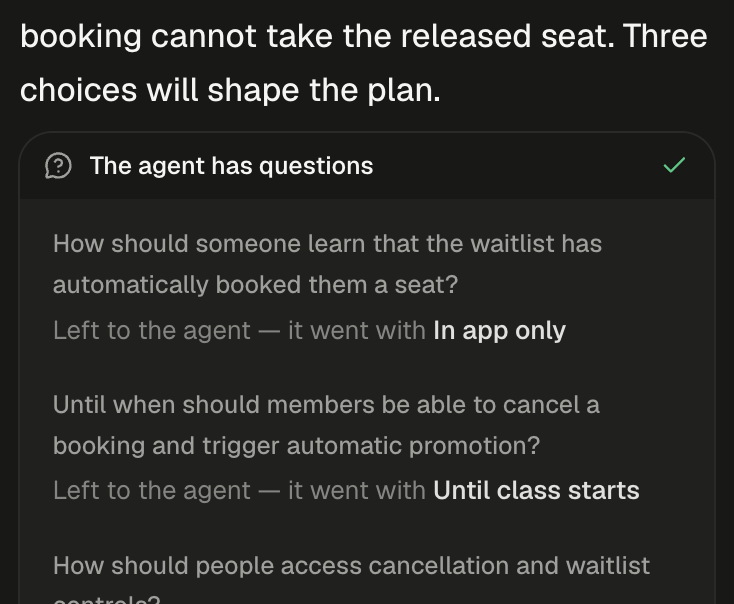
After a skip, the card folds to a record of the option the agent went with for each question.
Read and refine the plan
The plan streams into the Plan tab, the first tab of the workspace, which opens on its own. It stays for the life of the session, plan mode on or off, as the spec the build is checked against. A closed tab comes back with the next plan, or from the workspace’s + menu.
To change the plan, reply in the composer: “Only the advanced classes need a waitlist.” The revised plan replaces the old one in the Plan tab; earlier versions stay in the transcript. A plan revised after you’ve started building lands in the tab too.
Build the plan
When the agent is idle, and the session is still in plan mode or the plan is the latest thing in it, Implement this plan appears at the right of the workspace’s tab row, beside the plan’s copy button. It switches plan mode off and sends “Implement the plan.” as your next message, and the button gives way to “Starting the build…”. To change the plan first, reply in the composer instead.
A plan the agent proposes outside plan mode gets the same button, for as long as nothing has been sent after it. Queued messages run in whatever mode the session is in when their turn comes.
Track progress in the plan dock
While a turn runs, the agent’s to-do list floats as one line directly above the composer. It shows a progress ring, the numbered step under way and the count of steps done, such as 2/4, then “Plan complete” at the end. It’s the agent’s working checklist, separate from the proposed plan, so it appears in any mode. The dock opens briefly whenever the list changes, showing only what changed, with added steps marked new. Hover to see the whole list; click to pin it open or closed for the rest of the turn. Screen readers announce each step as it starts, as “Now: …”. The dock disappears when the turn ends.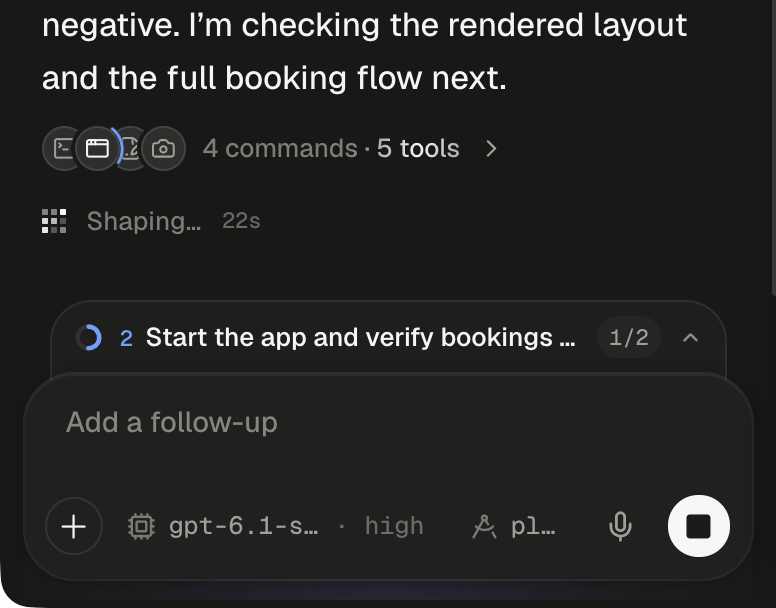
Folded to one line, the plan dock shows the step under way and how many are done.
Approve actions in older Claude Code sessions
New sessions run with full access, so they never ask permission. You’ll only see an approval card in an older Claude Code session that was left on Ask me or Workspace write (see the agent and model). The card is titled “Claude wants to use” and the tool’s name, shows the command or edit, and the turn waits on it with “Waiting for your approval”.
Workspace write cards, which ask before an Alpha command such as publishing or starting a server, offer only Allow once and Deny. A card left open when the turn ends reads “The turn ended before this was answered — the action was not taken.” Viewers see “Waiting for the session’s owner to approve.”
Next steps
Queue, steer or stop
Correct the build mid-turn once the plan is running, without starting over.
Follow the agent's work
Check each command and edit against the plan as the build streams in.
Choose the agent and model
Both agents plan, ask and show plans the same way. See what does differ.
Share a session
Let a teammate read the plan live before you build it. Only you can answer its questions.