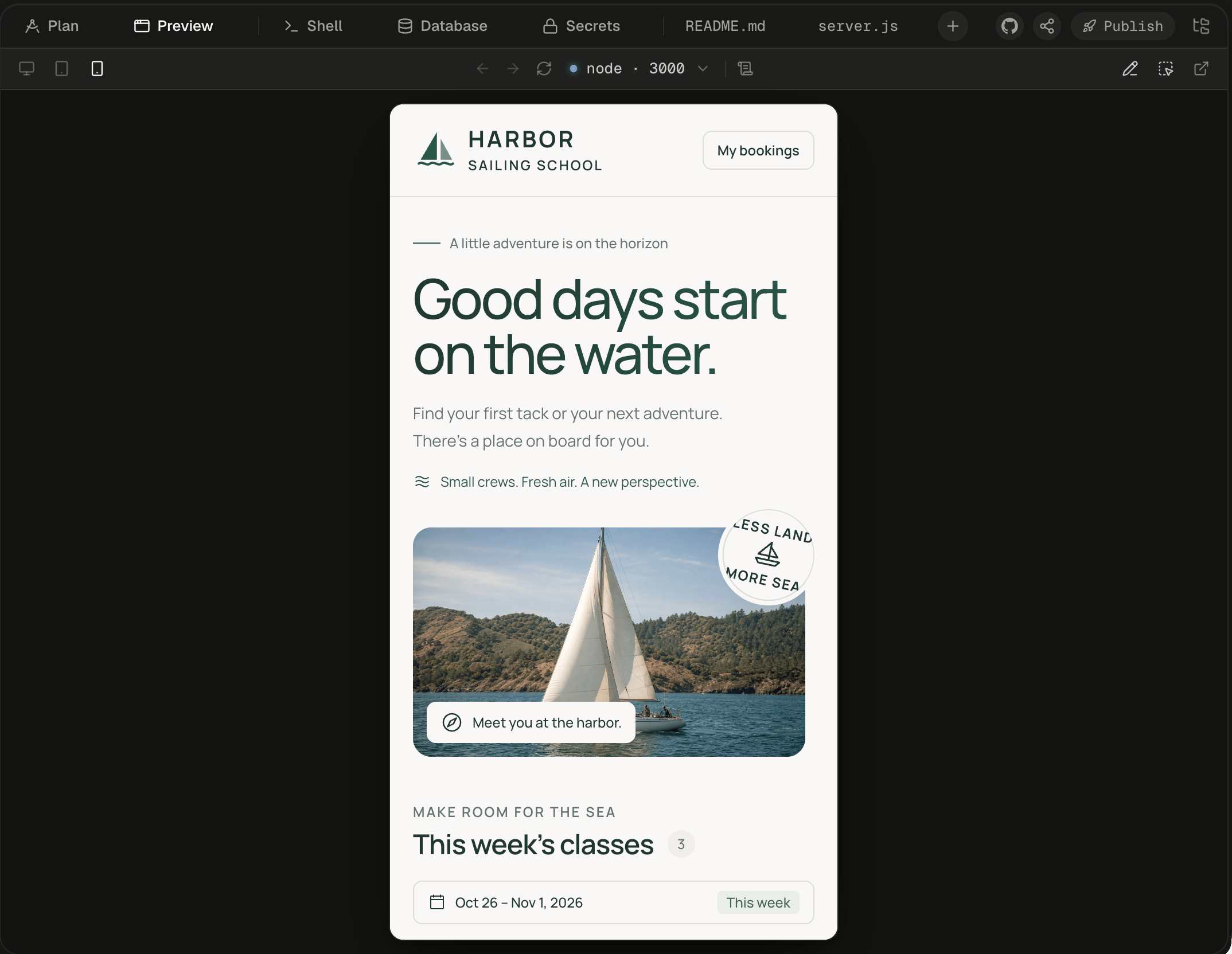
Go from one prompt to a running, published app in about 10 minutes.
About 10 minutesThis guide walks you through one full pass of Alpha: describe an app, watch the agent build it, change it by pointing at it, and publish it. You don’t write any code. If you’d rather understand the moving parts first, read How Alpha works.By the end of this guide you will have a booking page for a sailing school, live at its own https:// address.
Nothing to install. Every session gets its own machine in the cloud, so a browser is all you need.
No GitHub. This app lives in the session; you can connect GitHub later.
Keep API keys out of your messages. Anything you type in the composer lands in the transcript. Save keys as secrets instead, and the agent gets them as environment variables.
After you sign in, Alpha opens on the home screen: a greeting, the composer and a row of suggestion chips. There is no session yet. Your first message creates one.
The home screen, with the Harbor prompt typed and ready to send.
2
Describe the app
Paste this prompt into the composer and press Enter. It names an outcome and how to check it; Prompt Alpha well explains why that matters.Alpha will:
Start a fresh machine for the session, usually in about a second.
Write the app in the machine’s /workspace folder.
Start it on a port and check that booking works.
Open the Preview beside the chat.
3
Watch it work
Your message appears at once, with a status line under it: “Starting a fresh machine…”, then “Handing your prompt to the agent…”. A seconds counter appears after three seconds. Once the agent has your prompt, the line shows a working word such as “Striking while hot…”. What happens when you start a session covers each phase.
A few seconds in: the agent has your prompt, and the working line shows it's still going.
The agent’s commands, file edits and thoughts fold into one line with a tally. Click its chevron to see each one, as described in Follow the agent’s work. When the app serves a page, the Preview tab opens by itself.
4
Check it at phone width
In the Preview toolbar, choose the phone icon, Mobile · 390px. The frame narrows in place. If the device switch is hidden, drag the divider to widen the workspace. Preview your app covers the rest of the toolbar.
Mobile narrows the frame, and the app's phone layout takes over.
5
Point at something to change
Click Select in the Preview toolbar, then click the description on the Beginner Dinghy card. The element becomes a chip in the composer, showing its tag and its first words, so the agent knows exactly which element you mean. Type Make this text larger on mobile and press Enter. Press Esc to cancel a pick. Point at and draw on your app shows the other ways to point.
The picked paragraph waits in the composer as a chip, above your request.
6
Send a follow-up while it works
While the agent works, Enterqueues your message: it runs as its own turn after the current one. ⌘ Enter (Ctrl on Windows and Linux) steers instead: the message joins the running turn without stopping it. Try queueing Show a "Full" label on classes with no seats left. To swap which key does which, open Account menu → Settings → New messages. Queue, steer or stop has the details.
7
Publish the app
Wait for the agent to finish, then click Publish at the right of the workspace tabs. The Publish to production popover shows what will go live: Serves, Database, Sign-in and Access. Click Publish, which sends “Deploy this.” to the agent.
The Publish to production popover, before anything is sent.
If you don’t see Publish beside Share, publishing isn’t turned on for your Alpha.
8
Name it and open the address
The agent asks for a name in a question card. Pick its suggestion or type your own, such as harbor-bookings. The name is the start of the app’s address, so it can’t be changed later. The Publish tab opens and follows the rollout through Export, Plan, Build, Publish and Live. This usually takes 2 to 6 minutes. When the version card shows Published, click Open on the Published URL card.
Your app is live. Anyone with the address can open it, and it keeps running when your session sleeps.
The work carries on. Turns run on Alpha’s servers, not in your browser, so the transcript is complete when you return. Once no Alpha tab of yours has been visible for about 30 minutes, a session with nothing running goes to sleep. Opening it wakes it with every file and process as you left them. Your published app runs outside the session’s machine, so it stays up either way. See Sleep, wake and reset.You have done the core Alpha loop: describe, watch, point, publish.