

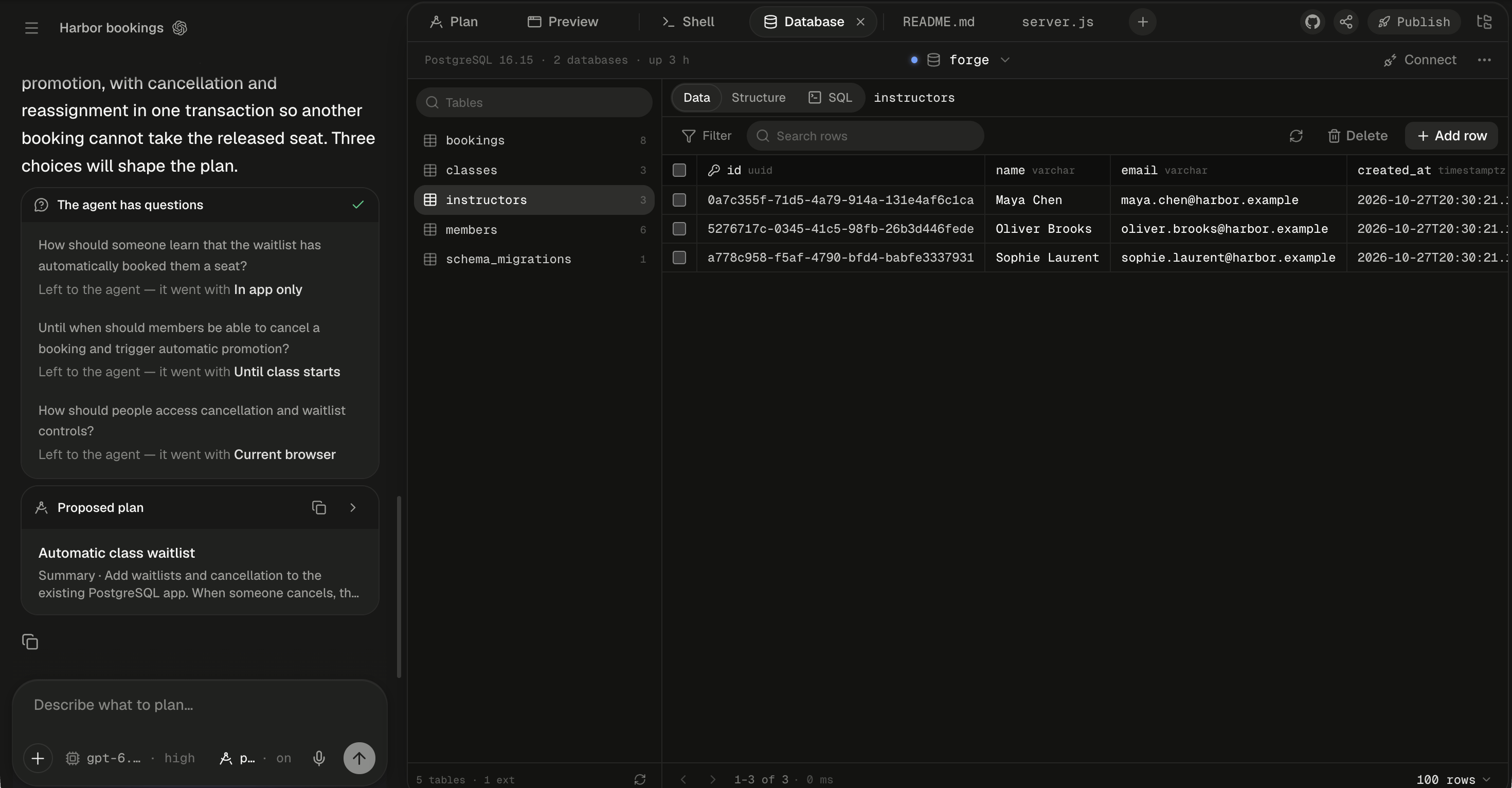
The toolbar holds the server summary, the database picker and Connect; the open table's rows fill the grid below.
Turn the database on
Nothing runs until something needs it, so a new session has no database server and no connection details. There are three ways to switch it on.
The agent uses this database by default whenever a project needs one, rather than SQLite or an in-memory store unless you ask for one. It doesn’t switch the database on for projects that don’t need it.
Alpha will:
- Start the session’s PostgreSQL and open the Database tab.
- Write the schema as a migration file in your project, and the sample classes as a seed script, so both can be recreated later.
- Point the app at
DATABASE_URLrather than a hard-coded connection string.
Connect from your app
Once the database is on, every command the agent runs and every app it starts has these values in its environment.psql connects with no arguments, and your app should read DATABASE_URL.
localhost inside the machine, so only the agent’s commands, the apps it starts and the Shell can reach it. Your own computer can’t connect to it. The role is a superuser, so CREATE EXTENSION and CREATE DATABASE work.
To see the values for the database you’re looking at, click Connect in the toolbar. On a narrow workspace it shows as a plug icon only. Each row has a copy button.
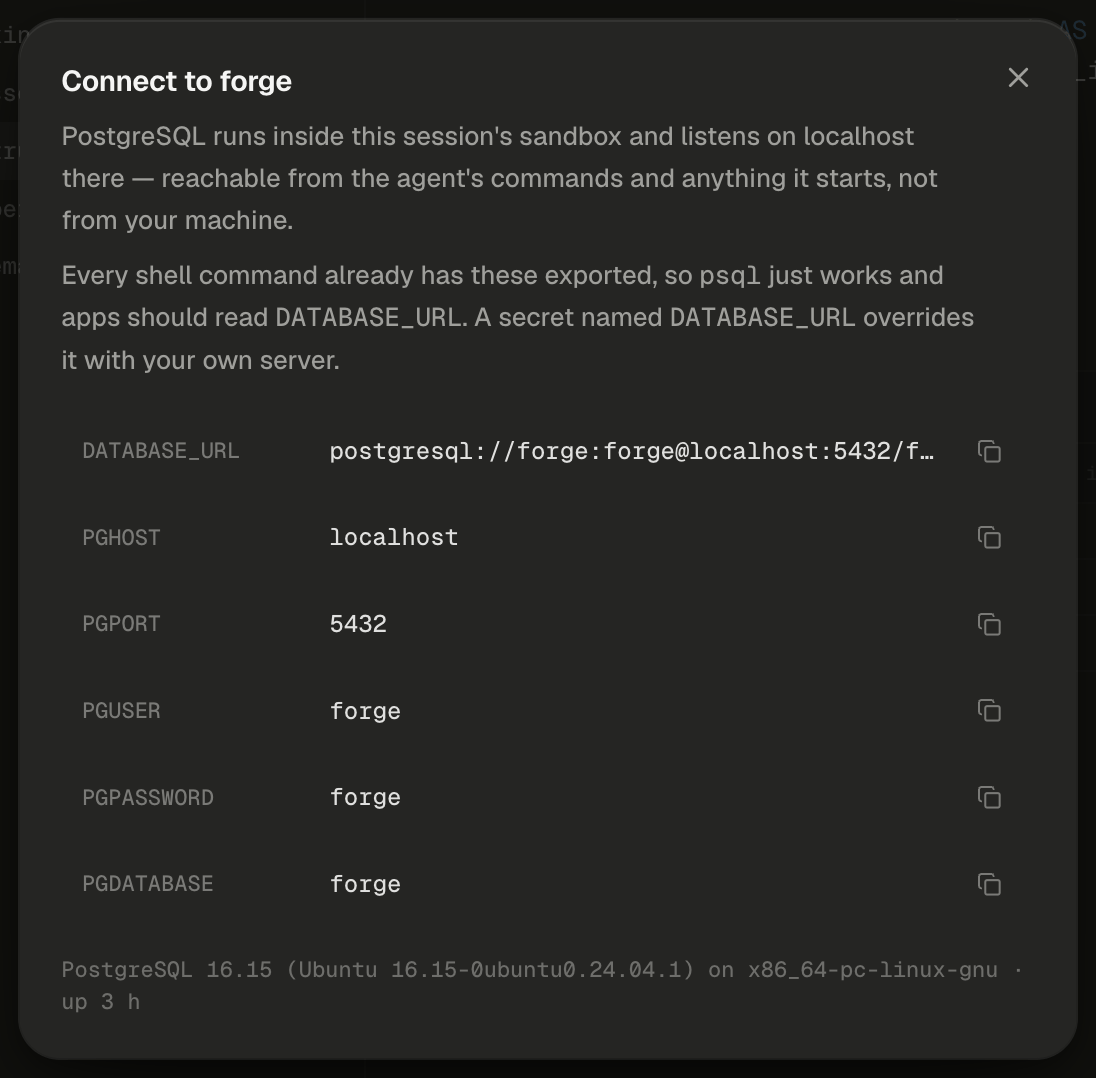
Connect shows the values the agent's commands already have.
DATABASE_URL. Your value wins over the built-in one, and the agent uses it for the app.
Switch or create a database
The server can hold more than one database. The picker in the middle of the toolbar lists the session’s databases with their sizes, and a check marks the one in view. The default database is the oneDATABASE_URL points at.
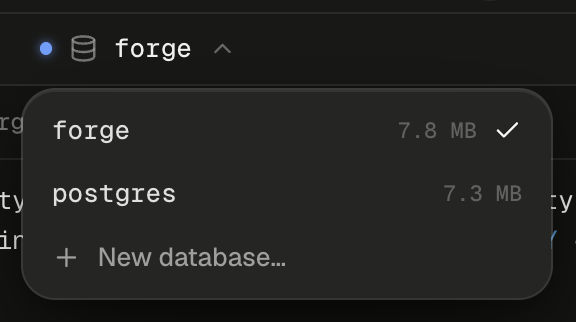
The picker lists the server's databases with their sizes and checks the one in view.
1
Open the picker
Click the database name in the middle of the toolbar, then click New database…. The item appears only while the server is running.
2
Name the database
Type a name made of letters, digits and underscores, starting with a letter or an underscore, such as
analytics. A name that’s taken shows “analytics already exists.” under the field.3
Click Create
The new database is owned by the same role and opens in the tab at once.
DATABASE_URL keeps pointing at the default database. To have an app use another one, copy its URL from Connect, or tell the agent which database to use.
Below the session’s databases, a Production section lists the databases of apps you published from this session. Picking one shows that app’s production data, tagged prod. Alpha reads it from its own server, so the session’s machine isn’t woken for it. When a published app has a production database, the Database tab shows even while the session’s own database is off, and opens on production. Production database and sign-in covers that view.
If you don’t see a Production section, either nothing you published from this session has a database, or publishing isn’t turned on for your Alpha.
Export, import, reset or drop
The ⋯ button at the right of the toolbar (tooltip “Database actions”) holds the actions for the database in view. Reset and Drop carry its name, such as Reset analytics….
With a production database in view, the menu holds only Refresh. Production’s tables come from the app’s migrations or a push from the session.
While a reset or an import runs, the tab locks the data and shows “Resetting database…” or “Importing SQL…”. The result appears on the left of the toolbar for a few seconds, such as “analytics was reset — every table is gone.” Click an error there to dismiss it.
What happens to your data?
The database lives on the machine’s disk, so it follows the machine. It never follows your app into production.
Keep your schema in migration files and your sample data in a seed script, as the agent does by default. Then a reset, a fresh machine or production can be rebuilt from the project.
When the database isn’t available
The tab says why it can’t show data, and offers the fix when there is one.Next steps
Browse, edit and query data
Filter rows, stage edits and save them in one transaction, or run SQL with completions.
Production database and sign-in
Fill production with migrations or a push from the session, and browse it here.
Add sign-in to your app
Let people sign in to your app, and see who has in the Auth tab.
The Shell
Open a terminal on the machine, where
psql connects with no arguments.