

Steer when the message changes the work in progress: a correction, a missing detail, “not that file, the other one”. The agent takes it in without starting over.
Queue when the message is a separate next task. It waits until the current turn ends, then runs on its own, so the work in progress isn’t disturbed.
Steer, queue or stop?
All three work only while a turn is running. When the agent is idle, every message you send starts a normal turn.
Steer and Queue are the only two modes. A message sent while files are still uploading waits for them and says so: “Steering — waiting for the upload to finish…” or “Queuing — waiting for the upload to finish…”.
Choose what Enter does
While the agent works, Enter and the ↑ button send your message your default way, and ⌘Enter sends it the other way. Use Ctrl instead of ⌘ on Windows and Linux. Hover ↑ to check: its tooltip reads “Queue · ⌘⏎ to steer” or “Steer · ⌘⏎ to queue”. Until you choose, the default is Queue. The first time a message lands in the queue, a card appears above it asking Queue or steer new messages? (“Queue waits for the agent to finish; Steer joins the running turn.”).
Either answer hides the card for good, on every device. To change your mind later, open Account menu → Settings and set New messages, or use More actions → New message settings on any queued row. Change your settings covers the page. Buttons and forms inside the agent’s interactive answers don’t follow this default: a click while the agent works is always sent as a steer.
Manage the queue
The queue panel sits on top of the composer. Its toggle, a count such as “3 queued messages”, folds the list away. Each row shows one message, with any context chips inline. Hover a row to see its actions.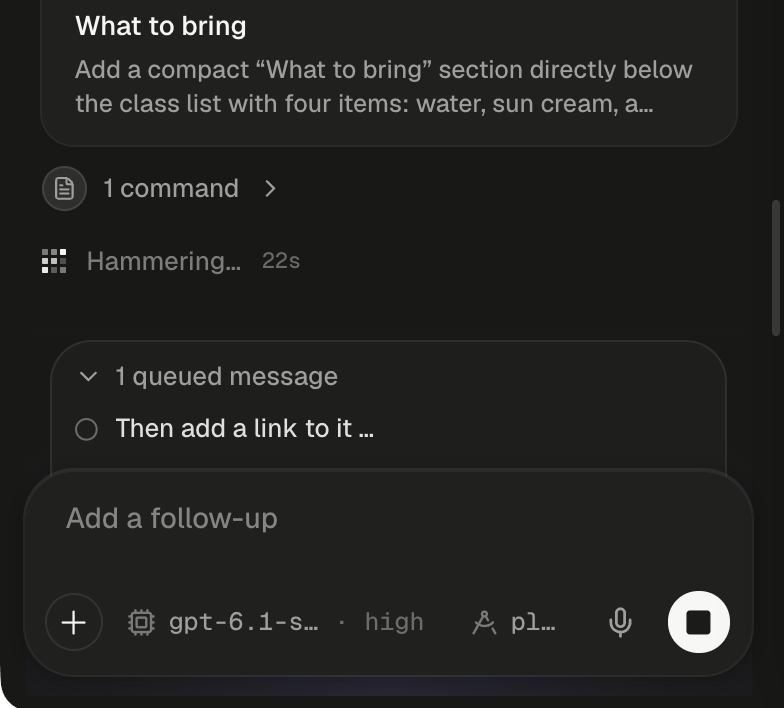
A queued message waits on top of the composer until the agent finishes.
A newly queued message shows dimmed, without actions, until the server has it. The queue holds at most 20 messages, each up to 100,000 characters. There is no reordering: a message keeps the place it was added in. Editing changes only the text, and context chips come back as plain text while you edit. Images attached to the message stay with it.
Queued messages run in whatever mode the session is in, plan mode included. They belong to the session, so they keep waiting if you close the tab, and deleting the session deletes them.
Why did the queue pause?
A queue never runs on blindly after something went wrong. It pauses, and a strip at the top of the panel reads “Paused — ” followed by the reason. Click Resume to start the next message.
While paused, Send now sends only that one message, and the rest stay paused. Deleting the last waiting message clears the pause.
Steer the running turn
A steer is part of the turn, not a new one. It shows dimmed with “Steering — joining the running turn…” until the agent takes it. In the transcript it then sits at the point it joined, with a corner-arrow badge underneath. Follow the agent’s work explains the rest of the transcript. Some activity can’t take a steer. Alpha then queues the message instead, and it appears in the queue panel. This happens during/compact and /review (slash commands), while a turn is still starting, while a stopped turn is still winding down, and for a message longer than about 45 KB.
Stop the agent
While the agent works and the composer is empty, the send button becomes a square Stop button. Click it, or press Esc in the composer. Esc stops the turn even when you have text typed, and your text stays in the composer.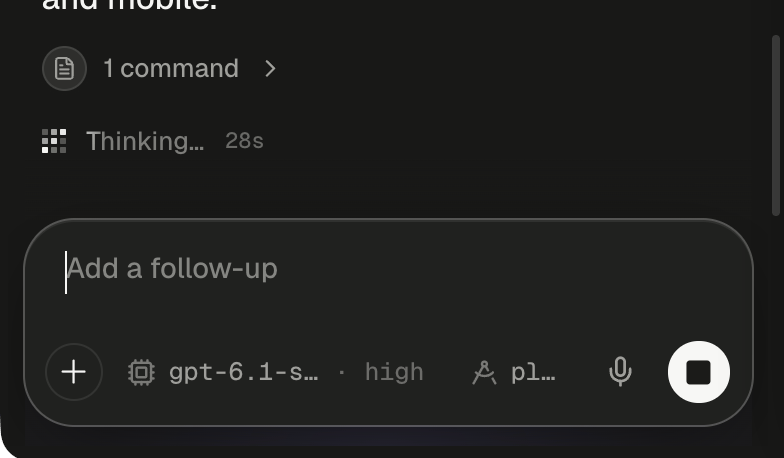
An empty composer mid-turn shows Stop in place of Send.
Closing the tab is not a Stop. Turns run on the server, so the agent keeps working, and your queue keeps moving, until the turn ends or you stop it.
Next steps
Follow the agent's work
Read commands, edits and plans as they stream, and find where a steer landed.
Plan mode and the agent's questions
Have the agent ask and plan first, so fewer turns need steering at all.
Choose the agent and model
Codex and Claude Code take steers at different moments. See what else differs.
Keyboard shortcuts
Enter, ⌘Enter and Esc alongside every other key in the workbench.