Click an element, draw on the page or select text in any file, and the agent gets exactly what you mean.
Pointing attaches the exact thing you mean to your next message: an element in your running app, a marked-up picture of the page, or lines from a file. For the Preview’s other controls, see Preview your app. To upload a file of your own, use the composer.
Each way to point stages something in the composer. Nothing reaches the agent until you send.
Way
Where it works
What the agent gets
Shortcut
Select (dashed pointer)
The Preview, HTML files, decks and PDFs. In Office files and BPMN diagrams, a plain click picks.
A chip describing the element: where it is in the code, what it says and how it is styled
None. Esc cancels.
Draw (pencil)
The Preview, HTML files, decks, PDFs, Office files, Excalidraw drawings, BPMN diagrams
A picture of the view with your marks, attached like an uploaded image
⌘Z undoes a mark
Add to prompt
Selected text in the code, Markdown, PDF and Office viewers; selected cells in spreadsheets; a clicked BPMN element; selected shapes in Excalidraw
A chip holding the exact text or cells, with the file and lines, page or range
⌘⇧L
Edit (paintbrush)
The Preview, HTML files, decks
A list of text and style changes for the agent to put in the source
⌘Z undoes a change
Use Ctrl instead of ⌘ on Windows and Linux. Select, Draw and Edit switch each other off, so only one is active over a page at a time.
Only the session’s owner sees these tools. People you share the session with can look at the Preview and the files, but they have no composer, so there is nothing to attach to.
Use Select when words like “the second button in the card” would be ambiguous. The agent receives the element itself, not your description of it.
1
Arm the picker
In the Preview toolbar, click Select. Its tooltip changes to “Click an element in the preview — Esc cancels”. Until the app’s page has loaded, the button is greyed out with “Element picker loads with the app’s page”.
The outline and label show exactly what a click will pick.
2
Click the element
A ring and a label follow the pointer from element to element. Click the one you mean. It becomes a chip in the composer, and the picker switches off. Esc leaves without picking.
3
Say what to change, and send
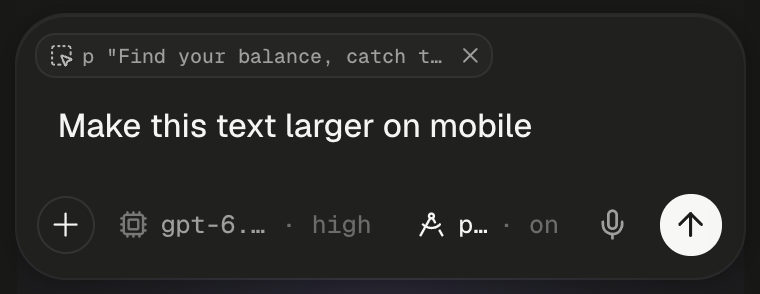
Type the change, such as “Make this text larger on mobile”, and send. For more elements, click Select again for each. Picking the same element twice adds nothing.
The picked paragraph waits as a chip above your text.
The chip describes the element: a unique CSS selector, the page, its size and position, its text, the styles that differ from the defaults, nearby text and its HTML. In a React app it also names the components around the element, and in a development build the source file and line that rendered it. IDs, class names and source paths that look like secrets, such as anything containing secret, password or api_key, are left out or become [redacted] before they leave the page. The element’s text and HTML go as they are.
Open Logs in the Preview toolbar and click the paperclip, “Attach the last lines to your next message”. The last 50 lines of the open tab become a chip: Preview console, or the server’s name followed by log. Read the logs covers the panel.
Use Draw when the problem is visual, or when you want several fixes at once. Click Draw in the Preview toolbar and a dock appears along the bottom of the page.
Control
What it does
Draw
Freehand pen
Arrow
An arrow from where you press to where you let go
Box
A rectangle around an area
Numbered pin
A numbered marker, so your message can say “pin 2 should be bigger”
Undo (Undo · ⌘Z)
Removes the last mark
Trash (Clear all marks)
Removes every mark and keeps you drawing
X (Cancel · Esc)
Leaves drawing and drops the marks
Add to chat
Captures the whole page with your marks and attaches it to your next message
The page keeps scrolling while you draw, and each mark stays pinned to what it was drawn over. Add to chat captures the whole page, not only the visible part, so you can mark the header and the footer in one go. The picture lands in the composer as an image attachment, and the agent is told your marks point at what you mean.
A box and an arrow mark the heading, and Add to chat waits at the end of the dock.
Capture gives up after 30 seconds with “The page did not answer the screenshot request in time.” Marks live in the page, so a reload, such as the one at the end of each turn, clears them. Pictures up to 15 MB reach the model as images.
Use Edit when you know the exact value you want. Click Edit in the Preview toolbar and a panel opens over the right edge of the page. Click an element, and the panel shows Text, Text colour, Background, Font size, Weight, Padding, Margin and Radius for it. The page shows each change as you make it. Text appears only for an element that holds text and no other elements.Apply changes sends the list as a message, which starts a turn, or steers or queues if the agent is busy. Until the agent’s turn ends, your changes are only a layer on the page, so a reload drops them. Esc or the panel’s X discards every change. Edit waits while the Preview shows the saved copy of a sleeping app: “Editing waits for the live page”.
Select text in a file and Add to prompt floats under the selection. Click it, or press ⌘⇧L. In the code editor it is also in the right-click menu as Add selection to prompt.
Viewer
What the chip holds
Code
The selected lines with the file path and line range. The chip reads like server.js:6-13.
Markdown
The selected text, with the file path and the source lines it came from
PDF
The selected text, with the file and page
Word and PowerPoint
The selected text, quoted with its page or slide numbers
Excel, CSV and TSV
Cells, a range, a row, a column or the whole sheet, as a Markdown table plus the formulas behind it
Excalidraw
Each selected shape: what it is and says, an arrow’s ends and its frame
Excalidraw has no shortcut, because ⌘⇧L is the editor’s own lock key there. Use the floating button.
Each viewer keeps its pointing tools at the right end of the file’s header: a pencil to draw and, in PDFs, HTML files and decks, a dashed pointer to pick. In Office files and BPMN diagrams, a plain click picks. File viewers covers what each viewer shows.
File
Pick
Draw and Add to chat
PDF
Click a paragraph, image, chart, table or link. Hold ⇧ to narrow to one line, or ⌥ to widen to the region around it, such as the whole table around a cell.
Marks stay on their page through zoom and reload. The marked pages go as one picture labelled by page.
Word, Excel, PowerPoint
Click a chart, picture or shape. Word paragraphs and tables and Excel cells can’t be clicked, so select them instead.
The page holds still while the pen is on
HTML file
Click an element, as in the Preview. Edit works here too.
The page with your marks
Deck
Click an element on the slide. Edit works here too.
Chips wait above your text until you send. Click a chip’s X to remove it, or hover it to read the start of what it holds. On send, each chip’s context goes ahead of your text, in the order you added them. A code selection, for example, arrives as Selected context — server.js (lines 7-13): followed by the lines.
A chip waits above your text until you send.
The transcript shows the same chips above your sent text. If a send fails, the chips come back. Opening another session drops chips you haven’t sent, and editing a queued message turns its chips into plain text.
Pair a pointer with one short sentence of intent. “Make this match the header” with an element chip beats a paragraph describing where the button is.