

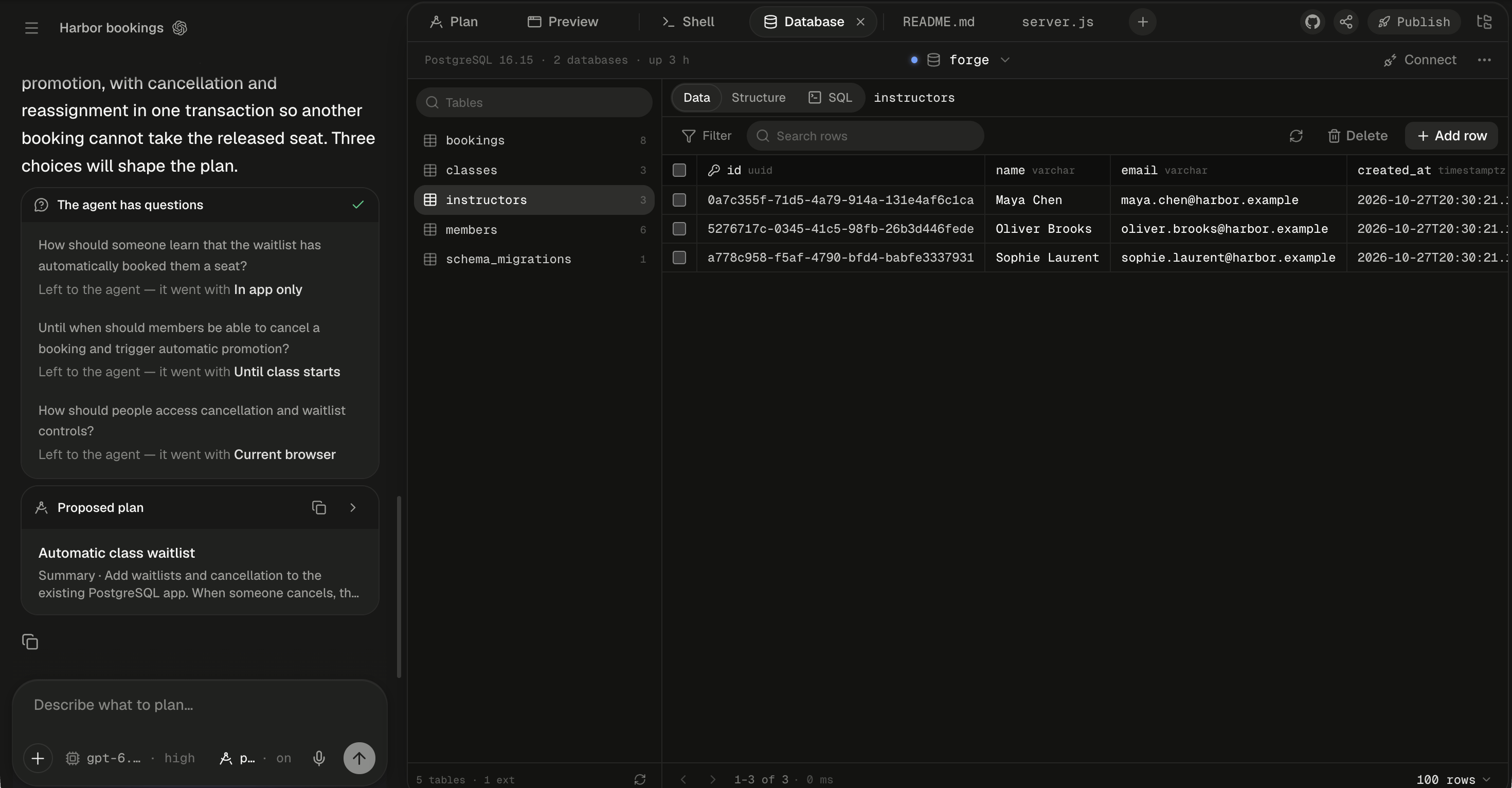
The toolbar holds the server summary, the database picker and Connect; the open table's rows fill the grid below.
Find the rows you need
The column on the left lists the database’s tables, then its views (eye icon). Tables outside thepublic schema are grouped under their schema’s name. A count prefixed with ~ is PostgreSQL’s estimate, not an exact count. Type in Tables to narrow the list, and click a table to open it. While this browser tab stays open, Alpha remembers which table you had open in each database, and where you left each table: its page, sort, filters and search.
In the Data view, the toolbar narrows the rows. Alpha runs each change as a query on the database, so sorting and filtering cover the whole table, not only the page on screen.
Hover a column header to see its full type, and the table it points to if it’s a foreign key.
The Filter operators:
Edit rows like a spreadsheet
Changes in the grid aren’t written one cell at a time. They’re staged, then saved together in one transaction, so a save either applies completely or not at all.
If PostgreSQL rejects a save, nothing is applied. The row that failed is outlined in red, the error shows above the grid, and your changes stay staged so you can fix them and save again. One save takes at most 1,000 changes.
Staged edits survive switching between Data, Structure and SQL. The badge in the header, such as “3 unsaved changes”, takes you back to them. While edits are unsaved, sorting, the paging arrows and the page-size picker are locked, and hovering the row count or the picker shows “Save or discard your changes first”. Refresh gives way to Discard and Save, and Refresh tables and rows under the table list waits too. Opening another table asks “Discard 3 unsaved changes in bookings and open classes?”, with Keep editing and Discard.
Some tables can’t be edited, and the footer says why:
Generated columns, and identity columns that PostgreSQL always fills, can’t be typed into. A read or save that waits more than 5 seconds for a lock gives up. This usually means the agent is running a migration on that table, so try again once it finishes.
Read a table’s structure
Structure shows how the open table is built. Columns lists each column with its type, chips such as pk, not null, unique, identity and generated, and its default or the table it points to. Indexes and Constraints (foreign keys, unique and check constraints) follow.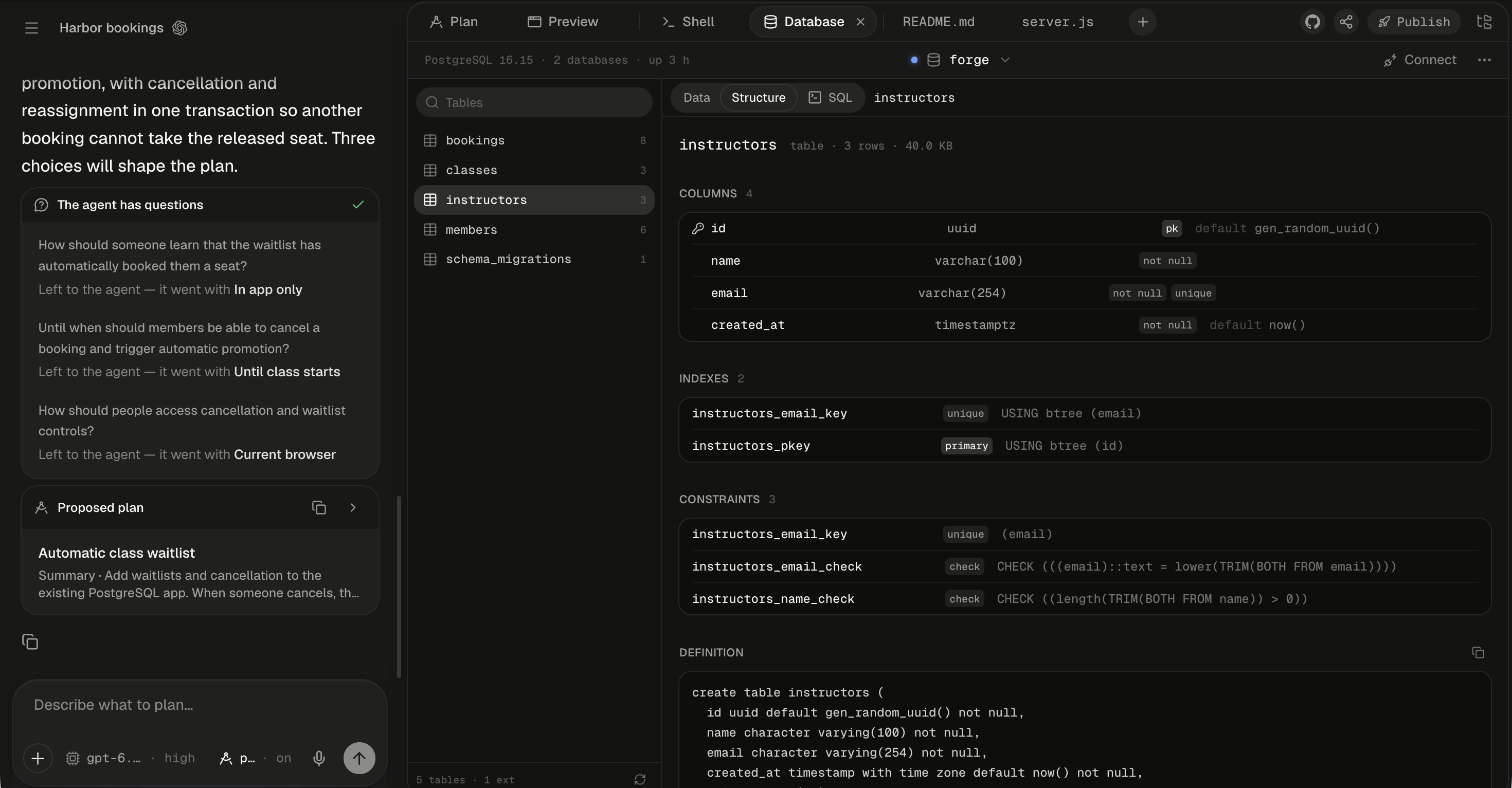
Columns lists each column's type, chips and default; Indexes, Constraints and Definition follow.
Run SQL
SQL opens an editor on the whole database, with completions for its tables and columns. Write a query and click Run, or press ⌘Enter. If you select part of the text, only the selection runs. While the editor is empty it suggests a query for the open table; click the suggestion to insert it.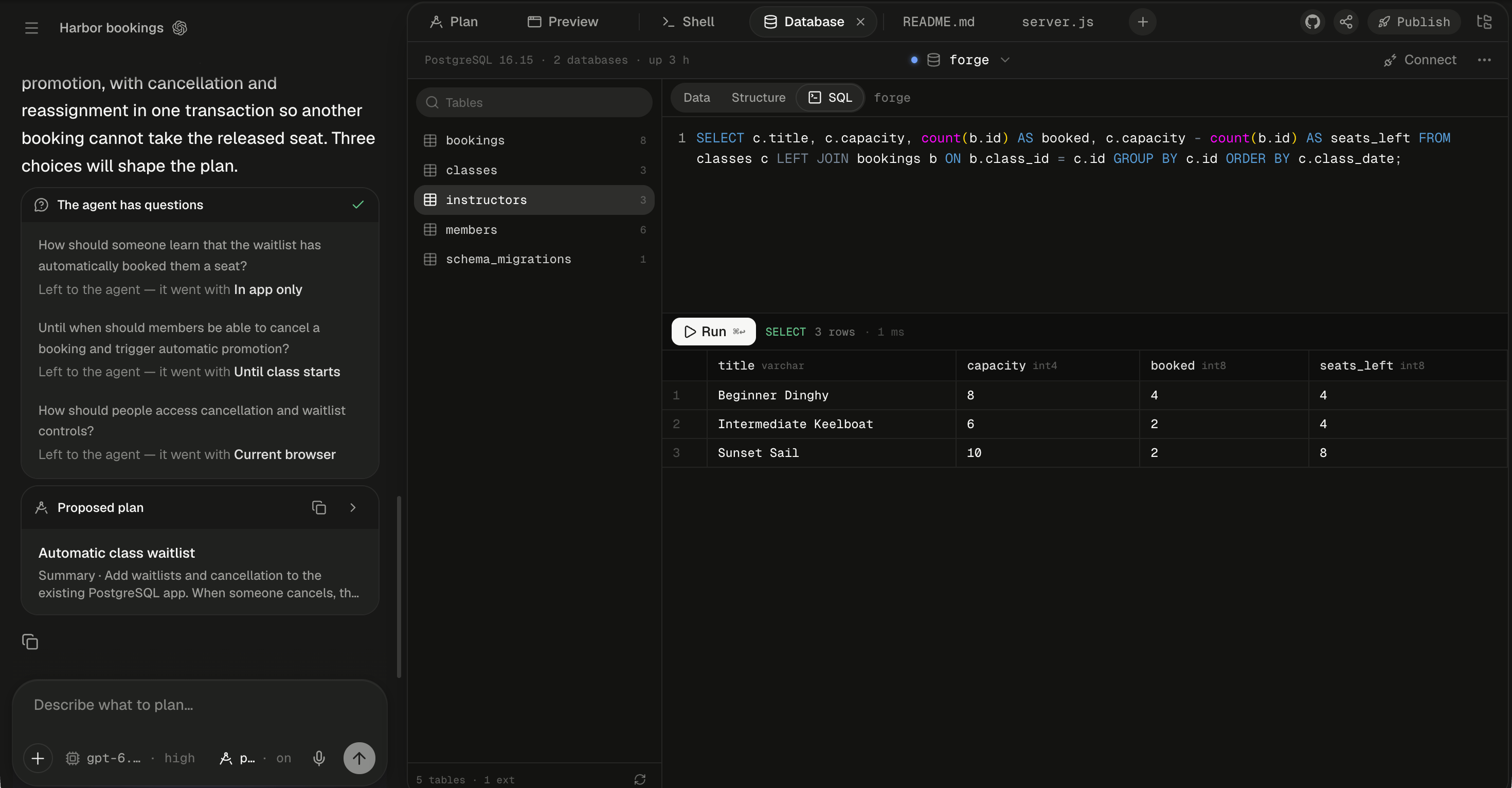
The bar between the editor and the results gives the command, the row count and the time.
Each query runs on its own and commits straight away. A script of several statements runs as one transaction, so all of it applies or none does. A query is stopped after 55 seconds. After any statement that isn’t a read, such as a
CREATE TABLE or an INSERT, the table list and the open table’s rows refresh by themselves.
Drag the bar to give the editor or the results more room. What you’ve typed is kept in this browser, per database.
What if the database has no tables?
A database with no tables says “No tables in” followed by the database’s name, with “Ask the agent to create your schema — it already has DATABASE_URL — or write the SQL yourself.” Open SQL takes you to the editor. The agent is usually the faster route, because it writes the migration into your app’s code as well. Alpha will:- Write a migration file in your app’s code and run it against the session’s database.
- Insert sample rows, so the Data view has something to show.
- Tell you which tables it created. If the Database tab was already open, click Refresh tables and rows under the table list to see them.
The Database tab is for the session’s owner. People you share the session with don’t see it. The same three views also open on a published app’s production database, chosen in the database picker; saves and SQL there change your live app’s data. See Production database and sign-in.
Next steps
Your session's database
Switch PostgreSQL on, add a second database, connect from code, or export, import and reset.
Production database and sign-in
Your published app gets its own empty database. Bring the session’s tables over when you’re ready.
The Shell
Run
psql against the same database from a terminal on the session’s machine.Add a database and sign-in, then go to production
A guided build that takes Harbor’s data from the session all the way to production.