

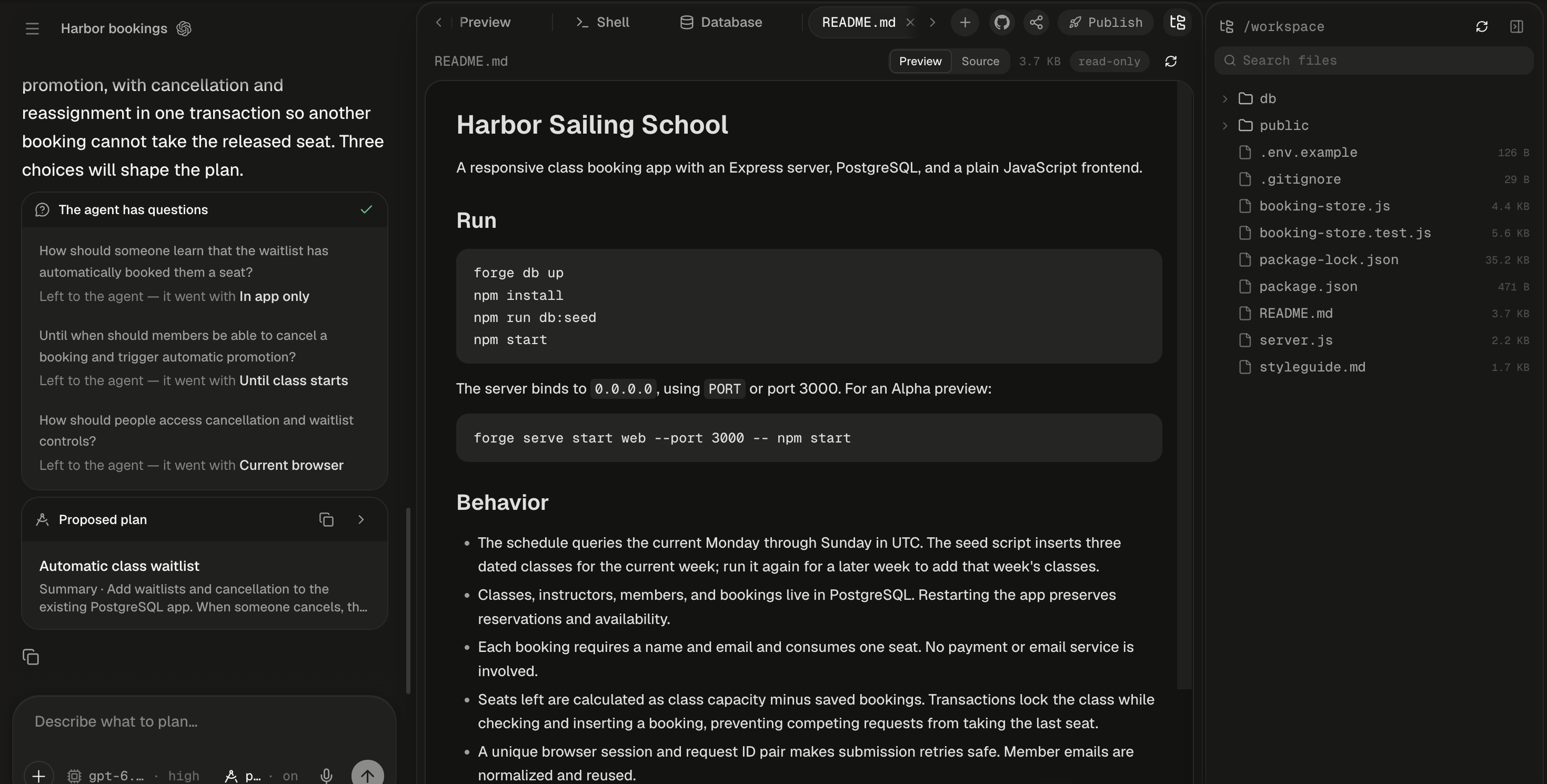
A file tab's header: the path, the Preview and Source switch, the size, the read-only chip and Refresh.
Which viewer opens a file?
Alpha picks the viewer from the file’s extension. A file that reads as binary and has no viewer shows “binary file” with its size and a Download button.
The pen, the picker and Edit sit at the header’s right end, in the viewers that have them. While the agent writes files, an open viewer re-reads its file every few seconds; Refresh re-reads it at once. If a re-read fails, the header says “refresh failed” and the last good version stays. How picks and marks reach the agent is on Point at and draw on your app.
People you share the session with open the same viewers, read-only, without the pen, the picker, Edit, Add to prompt or Add to chat, and they can’t build a LaTeX document. The files they see have your secrets masked.
Read code
Text files open in a code editor with syntax highlighting, line numbers, a minimap and folding. Typing in it shows “Read-only — ask the agent to change files”.Read Markdown and HTML
Markdown and HTML files open rendered, with a Preview and Source switch in the header. Markdown renders GitHub-flavoured, tables and task lists included. Select text and Add to prompt stages it with the lines it came from. An HTML file’s Preview runs the page in an isolated frame: scripts run and relative assets load, but nothing in the file can read your Alpha sign-in or act as you. The header carries the same tools as the app’s Preview:Look at images
Images open over a checkerboard, so transparency shows, fitted to the pane until you zoom. The header shows the size in pixels. A script inside an SVG never runs. Click the picture’s area before using the keys.
Add to chat sends PNG, JPEG, GIF and WebP as they are. Any other format, or a very large file, is redrawn as a PNG or JPEG first, so the agent sees what you see. TIFF, HEIC, HEIF and JPEG XL show only where the browser decodes them, which means Safari. Elsewhere you get “This browser cannot show HEIC images (.heic) — Safari can. Download it to open it in another app.”
Read PDFs
A PDF opens as pages in a scrolling column, with selectable text. The bar under the pages holds Previous page (←), Next page (→), a page box, Zoom out, Zoom in, Fit and Download the file; the pen and the picker are in the header. No script in a PDF ever runs. Select text and Add to prompt sends it with its page.Point at a paragraph or table
Click the picker, then hover: the paragraph, image, chart, table or link under the pointer is outlined. Hold ⇧ to narrow it to one line, or ⌥ to widen it to the region around, such as the table around a cell. Click to add a chip with the page, the position, the font, the text and what sits near it. Esc cancels.Draw on the pages
Click the pen and mark the pages with the Preview’s drawing tools. Marks stay pinned to the page through zoom and reload. Add to chat renders the marked pages into one picture for your next message, each page labelled “Page N of M” when the document has more than one.Read Word, Excel and PowerPoint files
The Office viewer renders Word, Excel and PowerPoint files, plus CSV and TSV, with their full styling: fonts, tables, images and charts, headers and footers, cell formats, merged cells and conditional formatting, slide themes and shapes. A workbook keeps its own sheet tabs; a CSV is one sheet. The bar has paging for Word and PowerPoint, Zoom out, Zoom in, Fit and Download the file, and the pen is in the header. There is no picker button: click an element to pick it. Links in documents are disabled.Point at Word and PowerPoint content
Select text and Add to prompt stages it with its page or slide numbers. Click a chart, picture or shape to pick it; in PowerPoint, any element on a slide. Word paragraphs and tables can’t be clicked, so select their text.Point at spreadsheet cells
In Excel, CSV and TSV files, select cells, a range, a row, a column or the whole sheet, then Add to prompt. The agent gets a Markdown table plus the formulas behind it. Charts, pictures and shapes can be clicked; cells can’t.What the Office viewer can’t open
Files named
.doc, .xls or .ppt, and macro and template files (.docm, .xlsm, .pptm, .dotx), don’t open here: they show “binary file” with Download. Animations, video and audio don’t play. The page holds still while the pen is active.
Build a LaTeX document
A.tex, .latex or .ltx file opens with a PDF view beside Source. Alpha compiles it in the session’s machine with Tectonic, a XeTeX engine, on open and whenever the file changes, writes <name>.pdf next to it, and shows it in the PDF viewer with all its tools. Build compiles again by hand.
Only the session’s owner can build. LuaTeX-only packages don’t work, and a document can’t run commands on the machine. A package the machine hasn’t cached is downloaded on first use, which needs the machine’s network.
The PDF is an ordinary workspace file: it shows in the files panel, downloads like any file, and the agent can read it.
Next steps
Point at and draw on your app
How chips and marked-up pictures ride along with your message, and how to remove one.
Slides, drawings and diagrams
The viewers for decks, Excalidraw and BPMN, with Present and export to PowerPoint or PDF.
Files and uploads
Search the tree, download a whole folder, and upload your own files for the agent to read.
Limits
The download, upload and image sizes that decide what a viewer can fetch.