

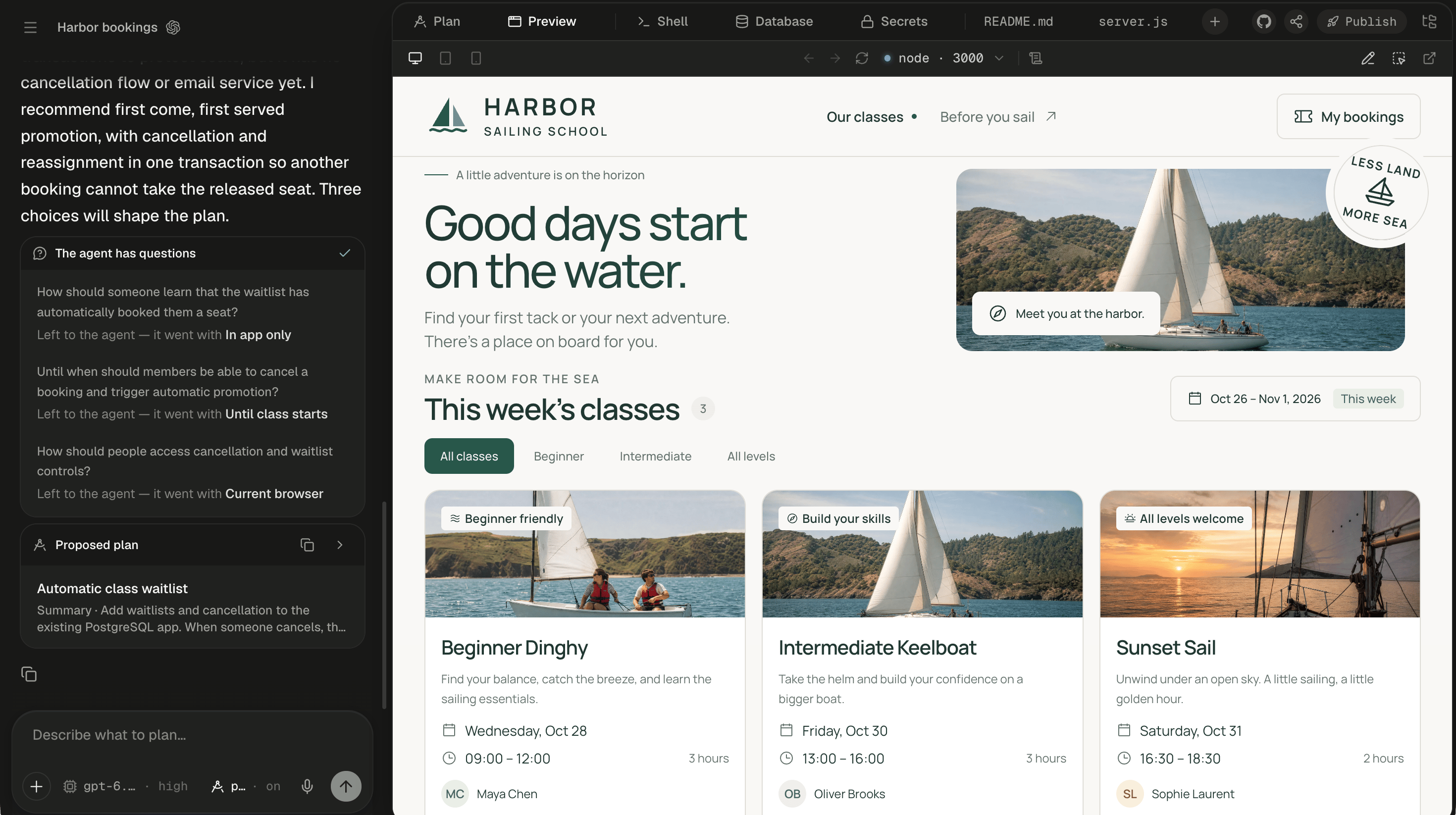
The workspace is the panel to the right of the chat. It shows your session’s machine: the app the agent is running, the files it wrote, a terminal, the database and the services you’ve switched on. Each of those is a tab in one strip across the top, and new tabs appear only when there’s something to put in them. To look at your app, go straight to Preview your app. To find a file, see Files and uploads.
The Harbor bookings session, with the sidebar collapsed to a menu button at the top left, then the title Harbor bookings and the Codex mark. The chat takes the left quarter. It ends with the agent's message that three choices will shape the plan, a card titled The agent has questions with a green check, listing three questions each answered Left to the agent — it went with In app only, Until class starts and Current browser, and a Proposed plan card titled Automatic class waitlist with a copy button and a chevron. The composer below shows the placeholder Describe what to plan…, then the + button, the model chip reading gpt-6.… · high and the plan chip reading p… · on on the left, and the microphone and a dimmed round send button on the right. The workspace fills the rest. Its tab strip reads Plan, Preview (in front), Shell, Database, Secrets, README.md and server.js, then the round + button, and at the right end the GitHub button, Share, the Publish pill and the files button. Under it, the Preview toolbar shows the Desktop, Tablet and Mobile icons, Back, Forward, Reload, the port pill reading node · 3000 and Logs, with Draw, Select and Open in new tab at the right. The frame shows the Harbor Sailing School app: the headline Good days start on the water., a sailboat photo with a round LESS LAND MORE SEA badge, This week's classes with a count of 3 and the date pill Oct 26 – Nov 1, 2026 · This week, the filters All classes, Beginner, Intermediate and All levels, and three class cards: Beginner Dinghy, Wednesday, Oct 28, 09:00 – 12:00, with Maya Chen; Intermediate Keelboat, Friday, Oct 30, 13:00 – 16:00, with Oliver Brooks; and Sunset Sail, Saturday, Oct 31, 16:30 – 18:30, with Sophie Laurent.

The chat sits on the left and the workspace on the right, with the Preview in front.

What each tab shows

Most tabs arrive by themselves when the agent starts using something. The rest you open from the + menu. Every file in the workspace is the agent’s, so every file tab is read-only. To change a file, ask the agent, or point at the part you mean. People you share the session with get the tabs marked Yes, and never the + menu.

Why is there no workspace yet?

Alpha switches nothing on until the work needs it, so a new session has no workspace panel and the chat takes its place. The + button, GitHub, Share and the files button sit in the chat header instead. A pulsing dot on + means a service is starting.
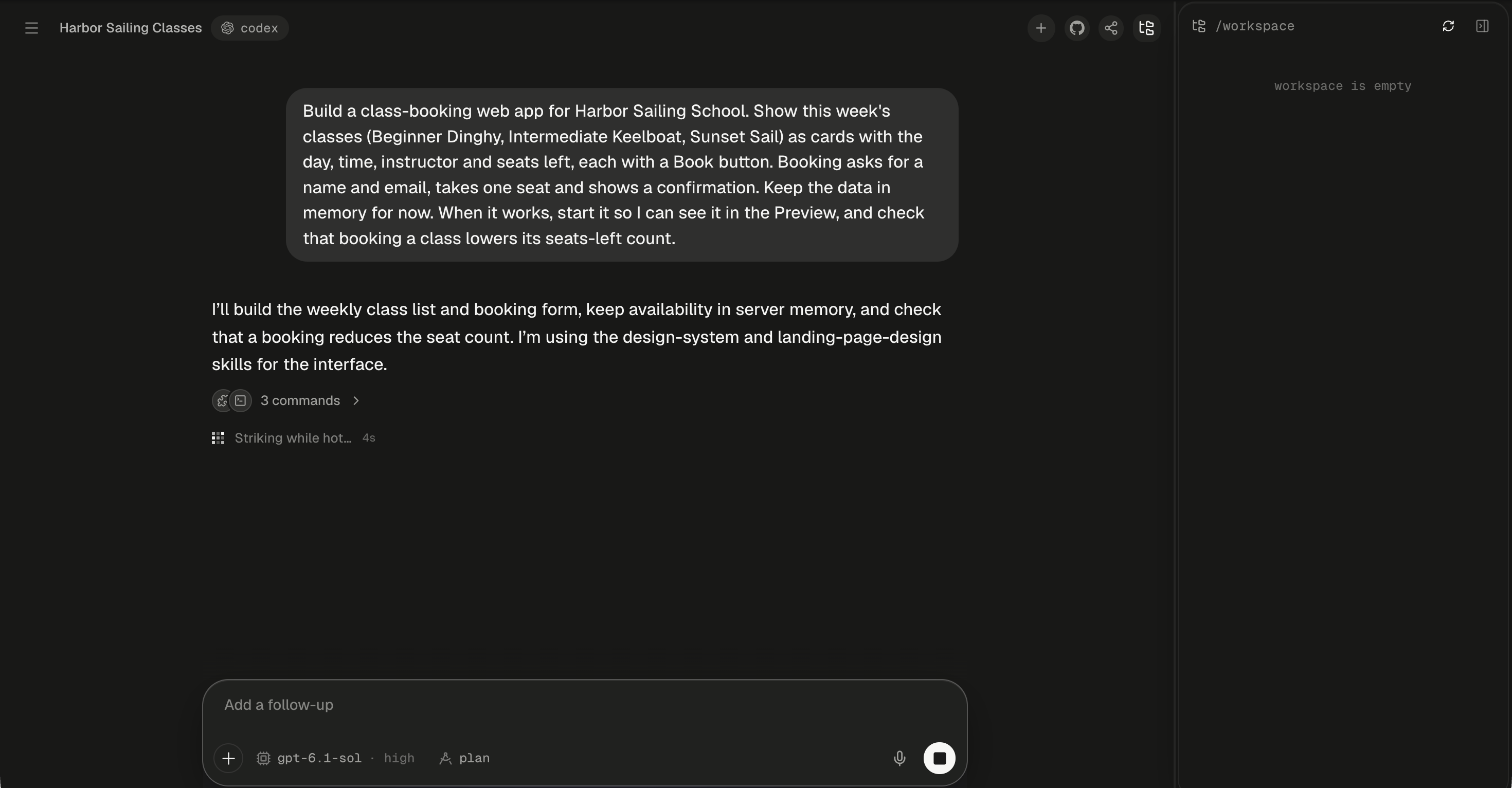
A new session a few seconds after its first message, with the sidebar collapsed. The header shows the title Harbor Sailing Classes and a pill with the Codex mark reading codex, and at its right the round +, GitHub and Share buttons and the lit files button. There is no workspace panel. The files panel is open along the right edge, headed /workspace with Refresh and Hide buttons, and reads workspace is empty. At the top of the chat, the prompt asking for a class-booking web app for Harbor Sailing School sits in a bubble. Below it, the agent's first message reads I'll build the weekly class list and booking form, keep availability in server memory, and check that a booking reduces the seat count. I'm using the design-system and landing-page-design skills for the interface. Under it, a folded row with two small round icons reads 3 commands, and a three-by-three pixel loader sits beside Striking while hot… and a 4s counter. The composer at the bottom shows the placeholder Add a follow-up, the + button, the model chip reading gpt-6.1-sol · high, the plan chip, the microphone and a round Stop button with a dark square.

A new session: the chat and the files panel, with + in the header and no workspace yet.

The panel slides in the first time there’s something to show: usually the Preview, once the agent starts your app.

Turn on a service

The agent switches services on when the work calls for them, such as the database when your app needs one. Each new tab folds into the strip and comes to the front. The Shell is the exception: only you can open it. To switch one on yourself, click + at the end of the tab strip (tooltip “Open a tab, or turn on a service”). The menu lists any tabs you closed first, then the services that aren’t on yet.
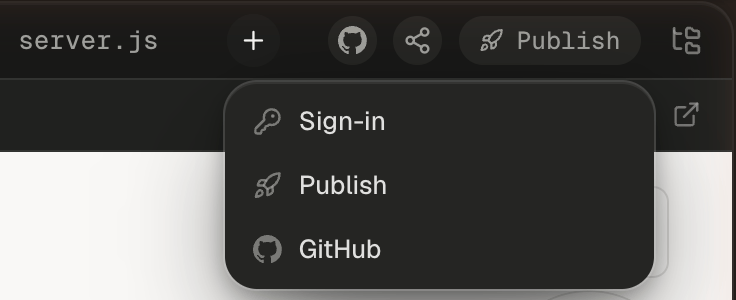
A close crop of the workspace's tab strip with the + menu open below the + button, which follows the server.js tab and comes before the GitHub, Share, Publish and files buttons. The menu lists, each with its icon: Sign-in, Publish and GitHub. Behind it, the top of the Preview shows.

With Shell, Database and Secrets already open as tabs, the + menu offers only the services that aren't.

A close crop of the workspace tab strip. It reads Preview, then Shell in front with its ×, then Database, dimmed while it starts, and the round + button at the end.

A service the machine has to start shows as a dimmed tab until it's ready.

If a service can’t start, Alpha shows the error and the starting tab goes away. The Preview is in the menu only after you close it: to get one, ask the agent to run your app.
If you don’t see Publish in the + menu or the workspace header, publishing isn’t turned on for your Alpha.

Close a tab or switch a service off

The × on most tabs only hides the tab, and the service keeps running. Only the Shell’s × ends something. The tooltip on each × says what it does, such as “Close the Database tab (the database keeps running)”. To bring back a hidden tab, pick it from the top of the + menu. A new plan brings Plan back by itself, and the agent publishing its AI agent or evals again brings back Agent or Evals. Close a file tab with its × or by middle-clicking it. If you close every tab, the workspace folds away, and Show workspace in the chat header brings your closed tabs back.

Arrange the workspace

Use Ctrl instead of ⌘ on Windows and Linux. Every shortcut is listed in Keyboard shortcuts. Alpha remembers each session’s tabs in this browser: the open files, the tab in front and the tabs you closed. Switch sessions or reload and they return as you left them, except a closed Preview, which comes back on reload. What a tab shows inside, such as the Preview’s port, isn’t kept. Another browser or device opens the session on its Preview, or on its first tab when it has no Preview.

What do the tabs show while the machine wakes?

A session’s machine sleeps once you’ve been away for about 30 minutes and nothing is running. When you open the session again, tabs that read from the machine show grey placeholder bars for a few seconds, then fill in by themselves, with nothing to retry. Plan, Auth, Routines and Secrets don’t read from the machine and show at once. See Sleep, wake and reset for what keeps a machine awake, and Limits for the idle time.

Next steps

Preview your app

Switch device sizes, read the app’s console and open it in its own tab.

Point at and draw on your app

Pick an element or mark up the page, and send it with your next message.

Files and uploads

Search the machine’s files, download a folder and attach your own.

Your session's database

Browse tables, edit rows and run SQL without leaving the session.